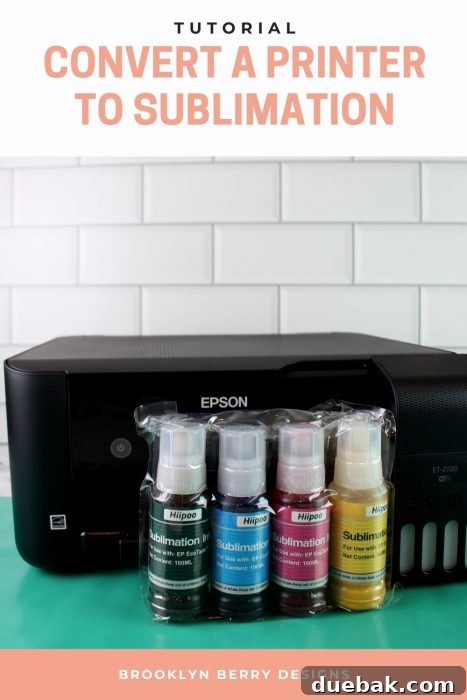
Dreaming of vibrant custom creations but daunted by the high cost of a dedicated sublimation printer? You’re in the right place! Discover how to easily transform a standard printer into a powerful sublimation machine, opening up a world of creative possibilities.
Sublimation printing has revolutionized personalized crafting and small businesses, allowing for stunning, permanent designs on a vast array of items. However, the initial investment in a specialized sublimation printer can be a significant barrier for many enthusiasts and entrepreneurs. Fortunately, there’s a brilliant workaround: converting a regular inkjet printer. Today, we’ll dive deep into converting an Epson EcoTank printer into a sublimation powerhouse, offering you the most cost-effective entry point into this exciting craft. I’ll guide you through every step, from selecting the right printer to the essential supplies and critical settings you’ll need for success.
The process of converting a printer might sound intimidating, but I assure you, it’s surprisingly simple and incredibly rewarding. Dye sublimation printing offers unparalleled advantages, like designs that are infused into the material, meaning no cracking, peeling, or fading—a stark contrast to vinyl or iron-on transfers. This permanence makes it an invaluable skill, whether you’re looking to launch a custom product business, create unique gifts, or simply elevate your crafting hobby.
My own journey into sublimation began with Cricut’s Infusible Ink, and I was instantly captivated by the professional, high-quality finish of the products. Unlike vinyl, which can feel stiff and eventually degrade, sublimated designs become one with the fabric, stretching and moving without compromise. The high price tag of traditional sublimation printers initially put me off, but once I discovered the online community converting standard EcoTank printers, I knew I had to explore this DIY path. This guide will empower you to do the same, making professional-grade sublimation accessible to everyone.
Curious to learn even more about the magic of sublimation? Dive deeper with our comprehensive beginner’s guide!
Choosing Your Perfect Printer for Sublimation Conversion
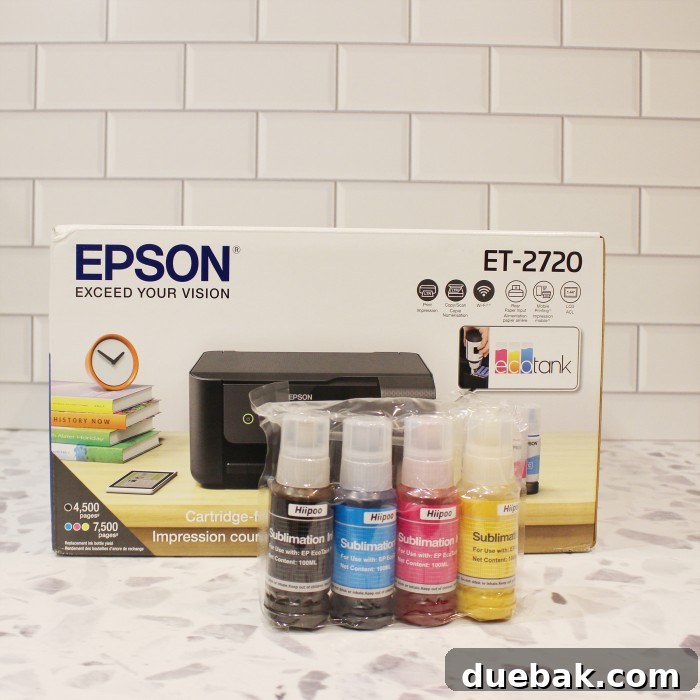
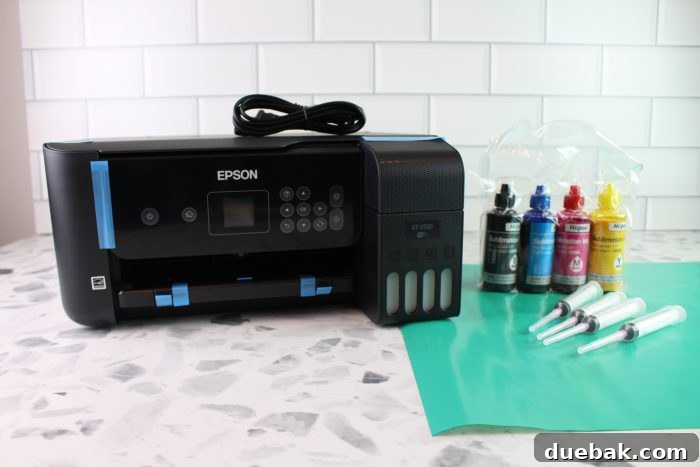
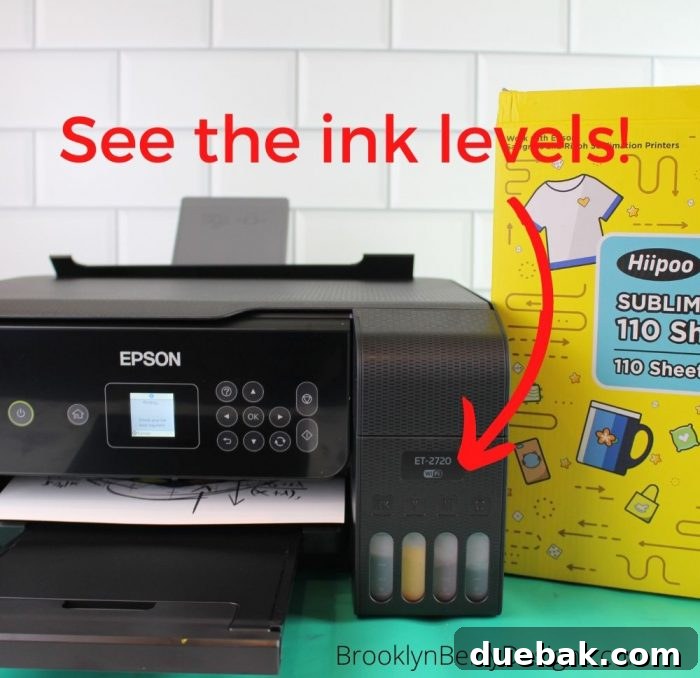
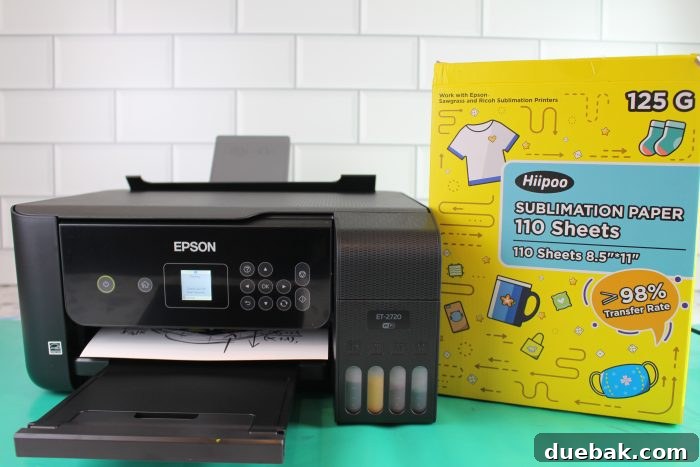
When it comes to DIY sublimation, not just any printer will do. The key to a successful conversion lies in selecting a printer with an ink tank system, rather than traditional cartridges. This is where Epson’s EcoTank series shines brightest, offering a hassle-free and efficient conversion process. While several models within the EcoTank line are suitable, I personally chose the Epson ET-2720 for my conversion, and it remains a top recommendation. However, any Epson EcoTank printer is an excellent candidate for this project due to its unique design.
Why the Epson EcoTank Series is Ideal for Sublimation
The Epson EcoTank series, including popular models like the ET-2720, ET-2760, ET-3760, and ET-4760, are specifically designed with large, refillable ink tanks rather than disposable cartridges. This feature is absolutely crucial for sublimation conversion for several reasons:
- Cost-Effectiveness & Accessibility: The ET-2720, in particular, stands out for its affordability and widespread availability. You can often find it at major retailers like Amazon, Target, or your local electronics store, making it easy to acquire. This low entry cost significantly reduces the financial barrier to starting sublimation.
- Seamless Ink Loading: The refillable tank system is paramount. Instead of purchasing expensive, specialized sublimation cartridges, you simply pour sublimation ink directly into the printer’s existing tanks. This design makes the conversion process incredibly straightforward and clean, especially when compared to attempting to refill standard cartridges, which is often messy and unreliable.
- Multifunctionality: Beyond its sublimation capabilities, the Epson EcoTank often retains its original functions. My ET-2720, for example, still serves as a high-quality scanner and connects effortlessly to my computer via Bluetooth and Wi-Fi. This means you get a versatile device that can handle both your sublimation projects and regular printing/scanning needs.
A Note on Warranty and Printer Condition
It’s important to be aware of one significant drawback: converting an Epson EcoTank printer to use sublimation ink will void its manufacturer’s warranty. This is because you are modifying the printer from its intended use with Epson’s proprietary inks. If you’re comfortable with a bit of DIY and confident in following instructions, this shouldn’t be a major concern, but it’s a decision to make knowingly.
Hot Tip: For the best and most reliable results, it is strongly recommended to convert a brand new, never-used printer to sublimation. Attempting to convert a printer that has already had regular ink run through its lines can lead to mixed results, ink clogs, and compromised print quality, as flushing out all the residual standard ink is a notoriously difficult task. While some online tutorials claim success with draining regular ink, starting fresh ensures a clean slate for your sublimation inks and optimal performance from day one.
Essential Supplies for Your Sublimation Printer Conversion
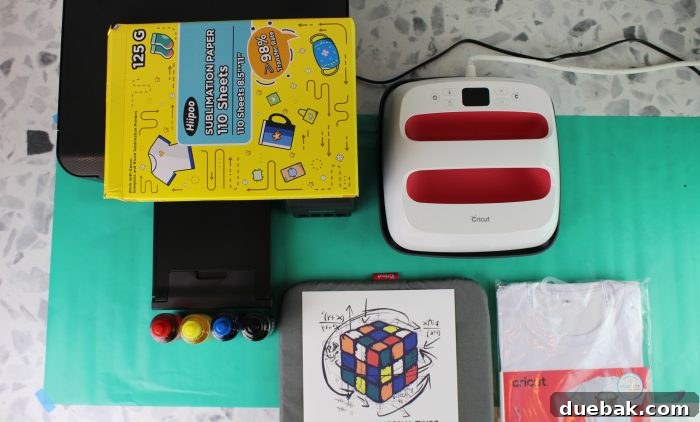
Before you begin the conversion process, gathering all the necessary materials is key to a smooth and successful experience. Investing in quality supplies will significantly impact the vibrancy and longevity of your sublimation projects.
- Epson EcoTank Printer: As discussed, a brand new EcoTank model (like the ET-2720, ET-2760, or ET-4760) is your foundation. Ensure it’s never been filled with regular ink.
- Sublimation Paper: This isn’t just any paper. Sublimation paper is specially coated to hold the sublimation ink on its surface until heat is applied, at which point the ink releases as a gas. High-quality sublimation paper ensures maximum ink transfer and vibrant results. Brands like Hiipoo, A-SUB, or TexPrint are popular choices.
- Sublimation Ink: This is the heart of your conversion. You cannot use regular printer ink for sublimation; it must be true sublimation ink, which contains dyes that convert to gas under heat. I recommend Hiipoo Sublimation Ink for its excellent color reproduction and reliability. Be mindful of bottle types (more on this below). You can find Hiipoo ink here, and another bottle type option here.
- Polyester-Based Blanks: Sublimation only works on materials that are polyester or have a polyester coating. For fabrics, aim for at least 65% polyester content for good results, with 100% polyester yielding the brightest colors. For hard goods like mugs, keychains, or phone cases, they must have a special polyester sublimation coating. Explore my favorite sublimation blanks here.
- Heat Press or EasyPress: A consistent and even heat source is non-negotiable for sublimation. A dedicated heat press provides superior pressure and temperature control, ideal for larger projects or consistent output. For smaller items or less frequent use, a Cricut EasyPress can also work effectively.
- Protective Mat: Always use a heat-resistant mat to protect your workspace from the heat of the press.
- Heat-Resistant Tape: This specialized tape is crucial for securing your sublimation print to your blank during pressing, preventing “ghosting” or shifting of the design.
- Butcher Paper or Parchment Paper: Used to protect your heat press platen and your blank from excess ink during the transfer process. You’ll place a sheet inside garments and over your design.
- Gloves: Sublimation ink can stain, so wearing gloves (often included with ink sets) is a smart precaution.
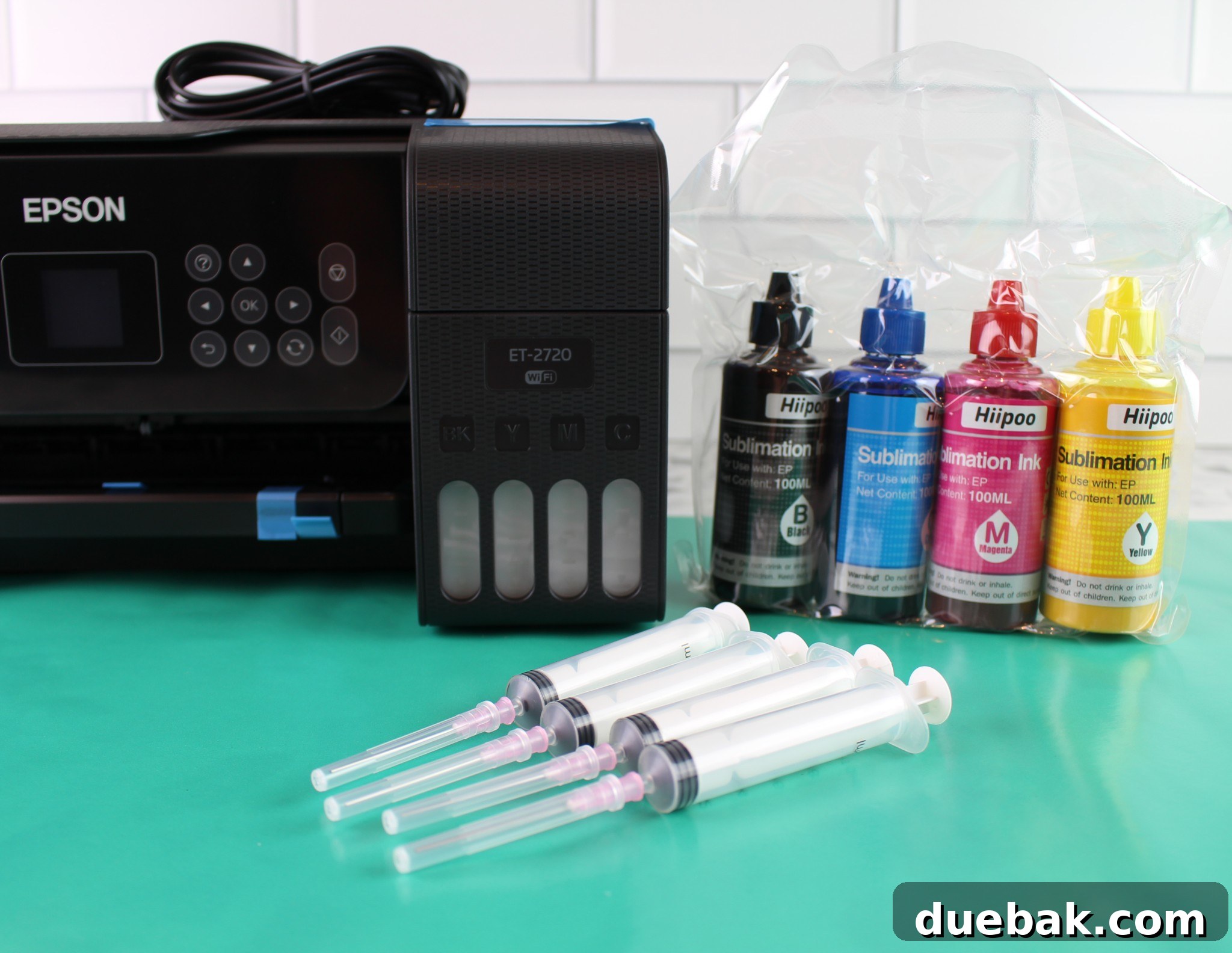
- Syringes (if not using direct-fill bottles): Necessary for the “less expensive” ink filling method.
Step-by-Step Guide: Converting Your Epson EcoTank Printer
The moment of truth has arrived! Let’s get your Epson EcoTank ready for sublimation. Follow these instructions carefully to ensure a clean and successful conversion.
Initial Setup & Printer Preparation
- Unbox Your New Printer: Carefully remove your Epson EcoTank printer from its packaging. Crucially, **DO NOT plug it in or turn it on yet.** We want to introduce sublimation ink to a completely dry system.
- Discard Original Ink: The printer comes with bottles of standard Epson ink. Set these aside and **discard them safely.** Under no circumstances should you ever mix regular printer ink with sublimation ink, or use them in the same printer lines. Doing so can permanently damage your printer and ruin your sublimation projects.
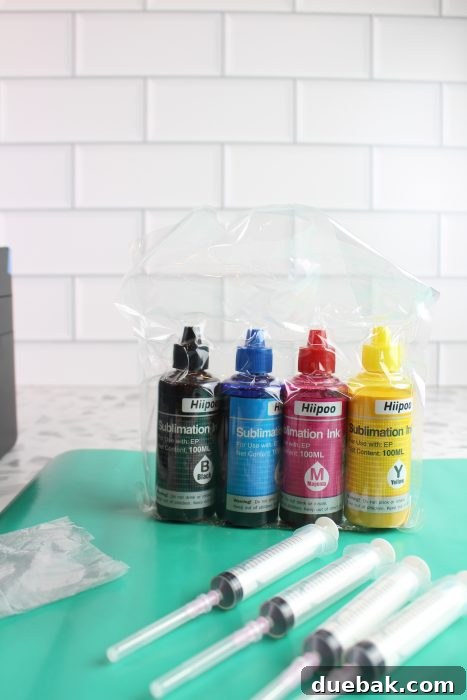
Understanding Sublimation Ink Bottle Types
When purchasing sublimation ink, particularly brands like Hiipoo, you might notice two primary types of bottle designs. Each offers a slightly different method for filling your EcoTank, influencing ease of use and, occasionally, cost.
The sublimation ink I’m using, Hiipoo, is widely available online, with Amazon being a popular source. As you shop, pay close attention to the bottle’s lid type.

One type of bottle features clear lids that are specifically designed to be identical to the ink bottles originally supplied with your Epson EcoTank printer. These are often referred to as “key-coded” bottles because their unique nozzle shape perfectly fits into the corresponding EcoTank ink port, preventing accidental filling of the wrong color. This method offers the most convenient and mess-free way to fill your tanks with sublimation ink.
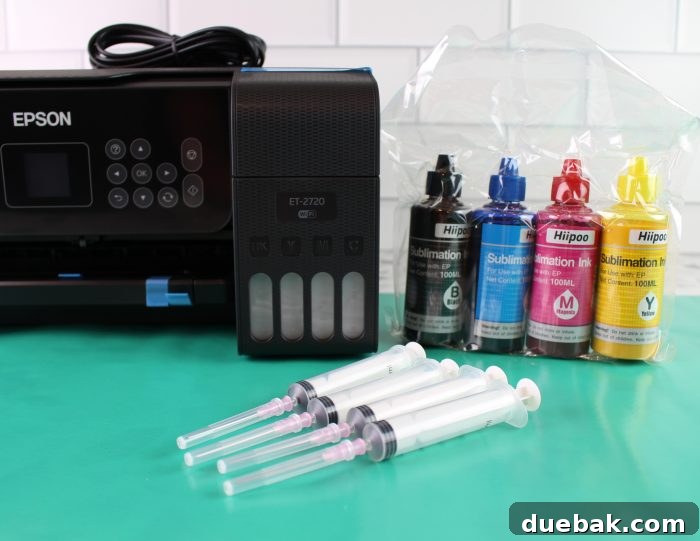
Another type of bottle, typically identified by colored lids, does not have the key-coded nozzle. These bottles require the use of a syringe to transfer the ink into the printer’s tanks. While this method might seem a bit more involved, it’s straightforward once you get the hang of it and often slightly more economical. It’s particularly useful if you’re converting a printer other than an Epson EcoTank that doesn’t have the specialized key-coded ports.
Method 1: The Easy Way (Using Key-Coded Bottles)
If you’re converting an Epson EcoTank, I highly recommend sourcing sublimation ink bottles with the clear, key-coded lids (like these on Amazon). These bottles simplify the filling process immensely.
- Open Ink Tank Covers: On your Epson EcoTank, lift the scanner unit and then open the individual ink tank covers. You’ll see the ports for each color.
- Match and Insert: Take your sublimation ink bottle, remove its cap, and align the bottle’s nozzle with the correct color tank’s filling port. The key-coded design will ensure it only fits into the corresponding color.
- Fill Tanks: Once inserted, the ink will begin to flow automatically into the tank. You don’t need to squeeze the bottle; the printer’s design creates a vacuum for self-filling. Watch the ink level on the side of the tank.

The bottles can be placed directly into the ink tanks, exactly as described in the printer’s original instructions for filling with regular ink.
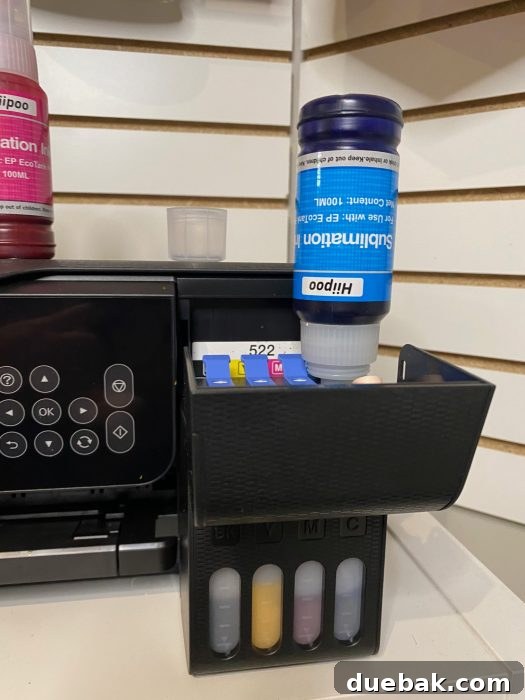
- Remove and Cap: Once the tank is full (or the bottle is empty), gently pull the bottle straight up to remove it. Re-cap the ink bottle tightly and close the tank cover.
- Repeat: Repeat this process for all four colors (Cyan, Magenta, Yellow, Black).
Method 2: The Cost-Effective Syringe Method (Using Colored-Lid Bottles)
If your sublimation ink comes with colored lids and doesn’t feature the key-coded nozzles, don’t worry—the syringe method is perfectly viable and often slightly more budget-friendly. Most Hiipoo ink sets that require syringes will include them, along with protective gloves. Always wear gloves, as sublimation ink can cause persistent stains on skin.
- Prepare Syringes: Attach a blunt needle tip (if provided) to each syringe. This helps with precise filling.
- Open Ink Bottles: Carefully open your first sublimation ink bottle.
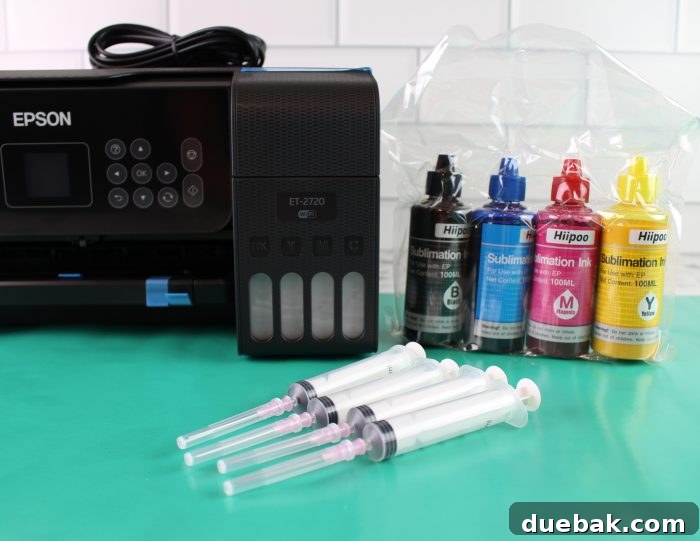
- Access Printer Tanks: Open the printer’s ink tank unit and then lift the individual colored caps for each tank. You’ll notice each tank is clearly labeled with its corresponding color (C, M, Y, K).
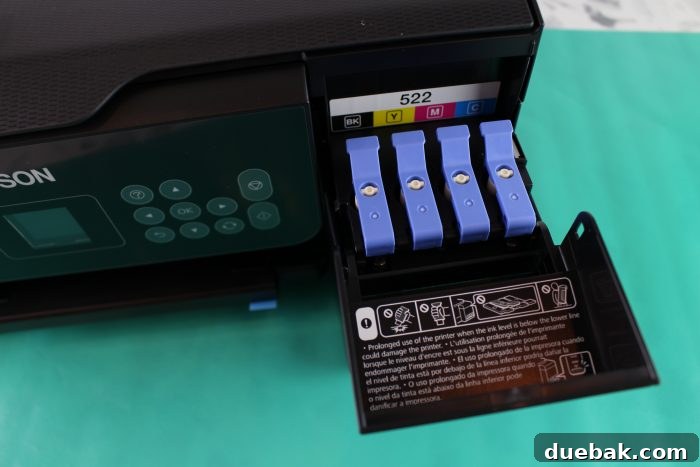
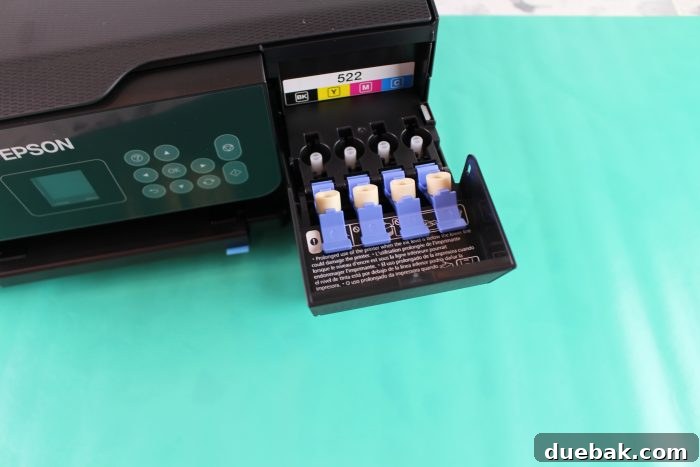
- Draw Ink into Syringe: Insert the syringe into the bottle of the first color ink. Slowly pull back the plunger to draw ink into the syringe. Fill it to a manageable level, avoiding drawing air bubbles.
- Fill Printer Tank: Carefully insert the syringe into the white circular opening of the corresponding ink tank. Slowly depress the plunger to release the ink into the tank.
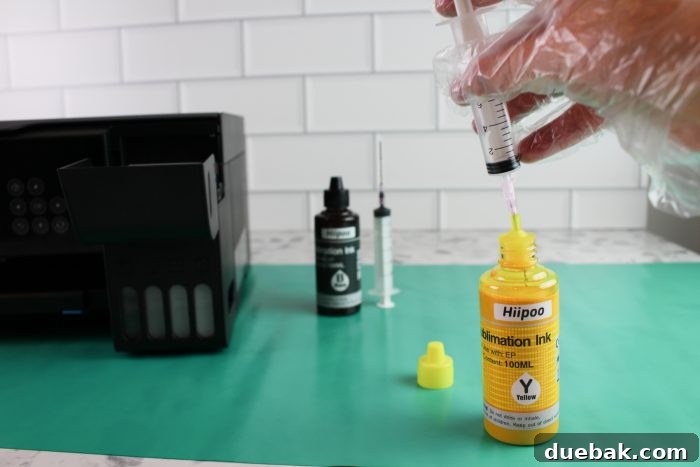
- Monitor Levels: Keep an eye on the ink level indicator on the outside of the printer’s tank. Fill it close to the top line, but avoid overfilling.
- Refill Syringe (if needed): You will likely need to refill the syringe multiple times per tank. When drawing more ink from the bottle, tip the bottle at an angle to allow easy access for the syringe needle without inverting the bottle. Inverting the bottle can cause messy drips (trust me on this, I’ve learned the hard way!).
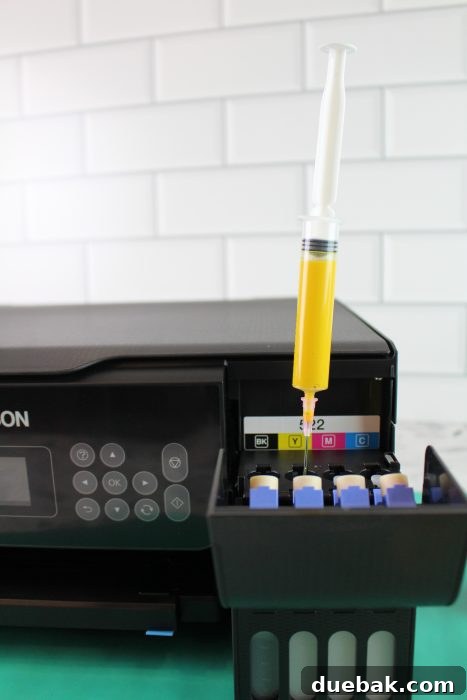
- Repeat for All Colors: Continue this careful process until all ink tanks (Cyan, Magenta, Yellow, Black) are filled with their respective sublimation inks.
Connecting and Initializing Your Newly Converted Printer
Once all the ink tanks are filled, it’s time to bring your sublimation printer to life! Now you can plug in the printer to a power source and turn it on. The printer will typically go through an initial setup process, which might include an ink charging cycle. This is normal and ensures the ink flows properly through the print head. Follow the on-screen prompts or the instructions provided with your printer to complete the initial setup.
Next, you’ll need to connect the printer to your computer. This usually involves installing the printer drivers and utility software, which can be found on Epson’s official website or on an installation CD if one was included. Depending on your computer’s operating system (Windows, macOS), the process will vary slightly, but the goal is to ensure your computer recognizes the printer and can send print commands to it via USB, Wi-Fi, or Ethernet. During this phase, you might also be prompted to perform a nozzle check and head cleaning; follow these steps to ensure optimal print quality from the start.
Optimizing Your Designs for Sublimation Printing
One of the fantastic aspects of sublimation is its versatility with design software. You don’t need expensive, specialized programs to create stunning sublimation prints. Popular and accessible options like Adobe Photoshop, Microsoft Word, PowerPoint, Google Slides, or even free tools like Canva, can all be used to develop your designs. The key is to create your artwork at a high resolution to ensure crisp, clear prints.
When you’re ready to print, the choice of paper is critical. **Always use dedicated sublimation paper.** This paper is engineered to temporarily hold the sublimation dyes on its surface and then release them perfectly under heat and pressure. While regular copy paper might technically run through your printer, it will yield significantly duller colors and a much lower transfer rate, resulting in faded and unsatisfactory final products. Sublimation paper ensures that the vibrant colors you see on your screen are accurately transferred to your blank.
Before hitting print, load your sublimation paper correctly into the printer’s rear tray, with the face (printable side, usually brighter white) facing up. A crucial step for sublimation is to **mirror your design.** Because the design will be pressed face down onto your blank, it needs to be reversed on the paper so it appears correctly oriented on the finished product. This setting is found within your printer preferences before printing.
Essential Printer Settings for Vibrant Sublimation Prints
Achieving truly vibrant and accurate sublimation prints largely depends on configuring your printer settings correctly. These settings dictate how much ink is laid down, the quality of the print, and ultimately, how well the colors transfer to your blank. Here’s a detailed guide to the ideal settings:
Standard Print Settings for Optimal Quality
Before you even think about colors, these general settings lay the groundwork for a high-quality print:
- Access Print Preferences: When you initiate a print command from your design software, select your Epson EcoTank printer, then click on “Preferences” or “Printer Properties” to access the detailed settings menu.
- Set Paper Size: Ensure the paper size matches the sublimation paper you are using. For example, if you’re using standard letter-size paper, select “8.5 x 11 inches.”
- Change Paper Type to “Premium Presentation Paper Matte”: This is a critical setting for sublimation. Even though you’re using sublimation paper, selecting “Premium Presentation Paper Matte” (or a similar high-quality matte photo paper setting) tells the printer to lay down more ink, which is essential for vibrant sublimation transfers.
- Change Quality of Print to “HIGH”: Always choose the “HIGH” or “Best” quality setting. This ensures the printer prints with maximum detail and ink saturation, which is vital for sharp and colorful sublimation results. Avoid “Standard” or “Draft” settings.
- Go to “More Options” Tab: Navigate to the “More Options” or “Advanced” tab within your printer preferences.
- Deselect “High Speed”: Uncheck the “High Speed” printing option. High-speed printing sacrifices quality for speed, often resulting in banding or less saturated colors, which is detrimental to sublimation.
- Check “Mirror Image” (or “Flip Horizontally”): This is absolutely non-negotiable for sublimation. Your design must be printed in reverse so it appears correctly oriented once pressed onto your blank.
- Save This Setting: Once you’ve configured these settings, save them as a custom preset (e.g., “Sublimation High Quality Mirrored”). This will save you time and prevent errors on future prints.
Custom Color Settings for Superior Results
While the standard print settings are a great start, fine-tuning your color management can make a significant difference in achieving true-to-life colors, especially given that sublimation ink often looks duller on paper before pressing. These settings help compensate for that:
- Return to “More Options” Tab: Within your printer preferences, go back to the “More Options” tab.
- Under “Custom Color Corrections” – Check “Custom”: This allows you to manually adjust color output rather than relying on the printer’s default color profiles.
- Click on “Advanced”: A new window with more specific color controls will appear.
- Change Color Mode to “Adobe RGB”: This color space offers a wider gamut of colors than standard sRGB, allowing for richer and more accurate color reproduction in sublimation.
- Set Gamma to 2.2: Gamma controls the overall brightness and contrast of your image. A setting of 2.2 is standard for many printing processes and helps maintain a balanced image.
- Adjust Brightness to 9: Slightly increasing brightness can help your colors pop.
- Adjust Contrast to 7: A small increase in contrast can enhance the definition between colors.
- Adjust Saturation to 15: This is a key setting. Increasing saturation helps to compensate for the sometimes muted appearance of sublimation ink on paper and ensures more vibrant colors after pressing.
- Adjust Density to 4: Density controls the amount of ink. A slight increase can help ensure full coverage and richness.
- Hit OK, OK: Apply these settings and confirm them.
- Save and Print: Again, save these as part of your custom sublimation preset. Now, you’re ready to print your design!
The Sublimation Pressing Process: Bringing Designs to Life
Once your design is printed, don’t be alarmed by its appearance on the sublimation paper. The colors will typically look dull, faded, or even completely different from what you expect. This is perfectly normal! Sublimation ink requires heat and pressure to transform into its vibrant, gaseous state and infuse into your blank. The true, brilliant colors will only reveal themselves after the pressing process is complete.
Send your mirrored design to the printer and watch it come to life on paper, knowing that the real magic happens next! The chemical reaction during heat application is what makes sublimation so unique and permanent. It’s truly exciting to witness the dull print transform into a rich, vivid design.
Advanced Sublimation Tips for Success
To ensure flawless results every time, keep these crucial sublimation tips in mind:
- Polyester Content is King: For fabric items like shirts, always verify the polyester content. Sublimation dyes bond exclusively with polyester fibers. The higher the polyester percentage (ideally 100%), the more vibrant and long-lasting your design will be. Lower polyester counts will result in a vintage, faded look that may not be desired.
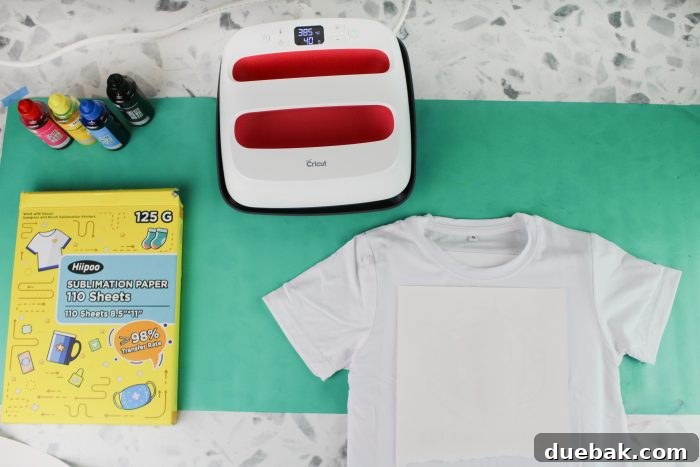
- Preheat to Eliminate Moisture: Before placing your design, preheat your blank (e.g., press your shirt for 5-10 seconds). This crucial step removes any moisture trapped in the material, which can cause steam and lead to blotchy or faded spots in your final print.
- Protect Against Ink Bleed-Through: For shirts and other fabric items, place a sheet of cardstock or butcher paper inside the garment, directly beneath where your design will be. This prevents any excess ink that might pass through the fabric from staining the back of the shirt or the bottom platen of your heat press.
- Proper Design Placement & Taping: Position your printed sublimation design face down, with the ink side touching your blank. Secure it firmly with heat-resistant tape at the corners. This prevents the design from shifting during pressing, which can cause a blurred or “ghosted” image.
- Use Protective Paper Layers: Place a sheet of butcher paper or Teflon sheet over your sublimation print and blank before closing the heat press. This protects your heat press platen from any potential ink transfer from the top of the sublimation paper, and also helps distribute heat evenly.
- Adhere to Time and Temperature Guidelines: The specific time and temperature for pressing will vary significantly depending on the blank you are sublimating (e.g., ceramic mug, polyester shirt, metal panel). Always consult the manufacturer’s recommendations for your specific blank and ink for the best results. A typical range for fabric might be 385-400°F (195-205°C) for 45-60 seconds, but this is just a general guideline.
Troubleshooting Common Sublimation Issues
Even with careful preparation, you might encounter a few common issues. Knowing how to troubleshoot them will save you time and frustration:
Ghosting
Ghosting appears as a faint, blurred duplicate of your design around the edges of the main image. It’s usually caused by the sublimation paper shifting slightly during the pressing process. To prevent this:
- Always use heat-resistant tape to secure your design firmly to your blank.
- Ensure your heat press opens smoothly without jostling the blank or paper.
- Avoid moving the blank immediately after pressing; let it cool slightly before handling.
Dull or Faded Colors
If your final product lacks the vibrant colors you expected, several factors could be at play:
- Low Polyester Content: Double-check that your blank has a high polyester count (65% or more for fabrics, 100% coated for hard goods).
- Incorrect Time/Temperature: Ensure your heat press settings match the manufacturer’s recommendations for your blank. Too little heat or time can lead to incomplete ink transfer.
- Moisture in Blank: Always pre-press your blank to remove moisture.
- Printer Settings: Revisit your printer’s custom color settings (Adobe RGB, saturation, density adjustments) to ensure optimal ink output.
- Ink/Paper Quality: Using low-quality sublimation ink or paper can also result in dull prints.
Lines or Streaks on Prints
Visible lines (banding) on your printed design usually indicate a problem with your printer’s print head:
- Perform a Nozzle Check: Use your printer’s utility software to perform a nozzle check. If there are missing lines, run a head cleaning cycle. You might need to run several cleaning cycles.
- Clogged Print Head: If cleaning cycles don’t resolve the issue, your print head might be clogged. Refer to your printer’s manual or Epson’s support for deeper cleaning procedures or professional assistance.
- Low Ink Levels: Ensure your ink tanks have sufficient ink.
Embrace Your New Sublimation Crafting Journey!
Congratulations! You’ve successfully converted your Epson EcoTank printer into a versatile sublimation machine, unlocking endless creative potential. You are now equipped to produce stunning, permanent, and professional-quality custom items. The satisfaction of seeing your designs come to life with such vibrant results is truly unmatched.
Look how much my son LOVES his new shirt I made him while creating this tutorial! He’s quite the Rubik’s cube master, and this personalized tee perfectly captures his passion!

If you encounter any challenges or have further questions during your sublimation journey, please don’t hesitate to leave them in the comments below. I’m here to help you succeed!
Not quite ready to print your own sublimation designs from scratch yet? Don’t worry, there are other ways to create custom apparel! Check out this tutorial on how to use a transfer sheet to make your own sublimation shirts using pre-made designs.
Looking For A Crafty Friend?
Pin for later: