

Unlock the full potential of your Cricut machine and transform your crafting projects from ordinary to extraordinary. Have you ever wished you could fine-tune a Cricut Design Space project, personalize a template, or simply understand how to manipulate shapes and text with greater precision? You’re in the right place! Cricut Design Space is a powerful hub, packed with intuitive tools designed to empower your creativity. This comprehensive guide will provide a crash course, breaking down each essential tool – Slice, Weld, Attach, Flatten, Contour, and Group – explaining exactly what they do, when to use them, and how they can elevate your crafting game. Get ready to master customization and bring your unique visions to life!
Introduction To Cricut Design Space: Your Gateway to Creative Customization
Whether you’ve just unboxed a brand-new Cricut Maker, a versatile Cricut Explore machine, or you’re a seasoned crafter looking to deepen your understanding, mastering Cricut Design Space is the key to unlocking endless creative possibilities. This cloud-based software is the command center for your Cricut machine, allowing you to design, edit, and send projects to be cut, drawn, scored, or foiled with precision.
Many beginners find themselves using pre-made projects and images, which is a fantastic starting point. However, the real magic happens when you start customizing! To truly personalize your projects, create intricate designs, or fix small imperfections in downloaded files, you need to understand the fundamental tools available within Design Space. This tutorial is your essential guide to navigating and utilizing the most impactful customization tools: Slice, Weld, Attach, Flatten, and Contour, along with the foundational Group function.
These powerful design tools are strategically located in the bottom right corner of the Design Space canvas. They might seem intimidating at first, but once you grasp their individual functions and how they interact, you’ll wonder how you ever crafted without them. We’ll walk through each one, demonstrating how they work and providing practical examples to help you seamlessly integrate them into your Cricut crafting workflow.

Group: Organizing Your Design Elements
The Group tool is a fundamental organizing feature within Cricut Design Space. It allows you to logically connect multiple design elements, treating them as a single unit without permanently altering their individual properties. To group items, simply select all the elements you wish to combine (by dragging a selection box over them or holding Shift/Ctrl and clicking each item), then right-click and select “Group,” or use the convenient keyboard shortcut Ctrl + G (Cmd + G on Mac).
When items are grouped, they will move, rotate, and resize together on your design canvas. This is incredibly useful for maintaining the relative positions and proportions of a complex design. For instance, if you’re designing a layered card and have several text elements and small decorative shapes that need to stay aligned, grouping them allows you to manipulate the entire section without accidentally shifting one piece out of place. It streamlines your design process, making it much easier to position and scale elements efficiently.
It’s important to note a key distinction: grouping does NOT keep items together on the cutting mat. When you proceed to the “Make It” screen, Cricut Design Space will automatically arrange grouped elements in the most material-efficient way possible, often separating them onto different mat areas or rearranging them within the same mat. If you need items to cut or draw in precise relative positions on the mat, you’ll need to use the Attach tool, which we’ll discuss next. Think of Group as a temporary organizational aid for your design canvas.
Attach: Securing Designs for Precise Cutting and Drawing
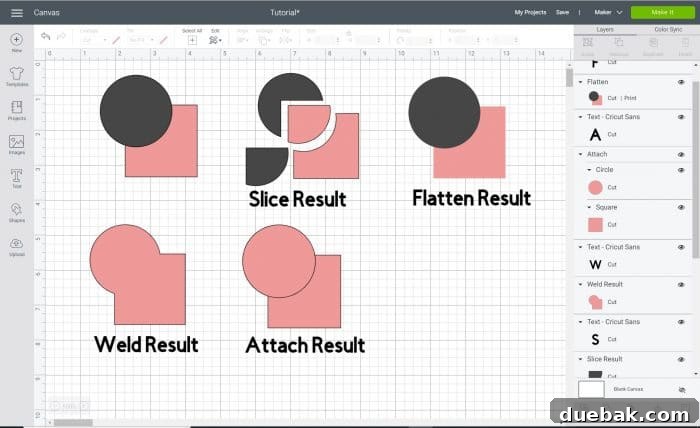
The Attach tool is indispensable for ensuring your design elements maintain their exact relative positions not only on your canvas but, crucially, on your cutting mat. Unlike Group, which is primarily for organizational purposes on the design screen, Attach permanently ‘pins’ selected layers together, guaranteeing that they will be cut, drawn, or scored exactly as you’ve arranged them.
A primary use case for Attach is combining a writing or score layer with a cut layer. Imagine you’re creating a custom greeting card. You might have a rectangular shape (your card base, a cut layer) and a personalized message (a drawing layer). If you simply group these, Design Space will likely cut the card and then draw the text in a completely different, optimized location on the mat. This would result in your text being drawn on a blank part of your material, not on the card itself.
To ensure the text is drawn directly onto the card, you would select both the card shape and the text layer, then click the Attach tool. Now, when you send the project to your Cricut, the machine understands that these two elements are linked. It will first score or draw the text, and then cut out the card, all in one seamless operation, precisely as you designed it. This functionality is vital for projects involving text on labels, decorative accents on shapes, or any design where the exact placement of multiple operations is critical.
Attach also prevents your machine from re-optimizing the placement of multiple cut layers. If you want a series of stars to cut in a specific pattern on your mat, select them all and Attach them. Design Space will then respect that precise arrangement on your mat preview, ensuring your material is cut exactly where you intend.
Weld: Merging Shapes and Text into a Single Entity
The Weld tool is a transformative function that allows you to join two or more overlapping shapes or text elements into a single, unified shape. When you weld items, any overlapping cut lines disappear, creating a smooth, continuous outline. This tool is incredibly useful for creating custom shapes, personalizing fonts, and streamlining complex designs.
The most common application of Weld is with cursive fonts. When you type out a word in a cursive style, the individual letters often overlap slightly. If you were to cut this word without welding, your Cricut machine would cut each letter separately, including the tiny overlapping sections, resulting in disconnected, choppy characters. By selecting the text and clicking Weld, Design Space merges these overlapping parts, creating one fluid, continuous cut path for the entire word, just like professional calligraphy.
Beyond text, Weld is fantastic for creating entirely new shapes from basic geometric components. For example, you could take a simple rectangle and overlay a triangle on one end. Welding these two shapes together would instantly create a perfect pennant flag shape, ready for cutting. You can combine circles, squares, stars, and any other design elements to form intricate and unique custom graphics. This eliminates the need to draw complex shapes from scratch, allowing for quick iteration and design experimentation. Remember, once items are welded, they become a single, permanent layer that cannot be easily unwelded (though you can use the Undo button immediately after welding). Always save your project before welding if you think you might want to revert to individual shapes later.
Slice: Precision Cutting and Creating New Shapes
The Slice tool is a powerful function that allows you to cut one overlapping shape out of another, effectively splitting both into separate, new pieces. It’s often compared to a “cookie cutter” because it works by using one shape to punch out a section from another, yielding the cut-out portion and the remaining frame. This tool is excellent for creating intricate cut-outs, designing custom windows in shapes, or dividing elements with precision.
Let’s use the cookie cutter analogy to make it clearer. Imagine you have a large square shape (your bread) and a smaller star shape placed on top (your cookie cutter). When you use the Slice tool, the star will cut out a star-shaped hole from the square. But that’s not all! You’ll be left with three distinct results: the square with the star cut out, the star shape that was cut from the square, and the original star shape (the “cookie cutter” itself). You can then use or discard these pieces as needed.
A classic example is creating a layered design with a custom frame or window. You might have a large rectangle for a gift tag and want to cut a heart shape out of its center. Select both the rectangle and the heart, then click Slice. You’ll get the heart cut-out, and the rectangle with a heart-shaped hole, perfect for a personalized tag. Another common use is to cut text out of a solid shape for a stencil effect or to create layered vinyl designs.
**Important Note:** The Slice tool can only be used with two images or layers at a time. If you select more than two layers, the Slice button will be grayed out and inactive. If this happens, ensure you only have two elements selected. You may need to ungroup existing items before performing a slice operation. This limitation ensures precise control over which elements are interacting.
Flatten: Transforming Designs for Print Then Cut
The Flatten tool is specifically designed for the “Print Then Cut” feature of your Cricut machine. It takes all selected images, text, and shapes and merges them into a single, printable layer, while retaining all original colors and textures. Essentially, it tells Design Space: “Print this entire arrangement as one image, and then cut only the outermost contour.”
When you Flatten multiple layers, they transform from individual cut or draw operations into a single print layer. The distinct colors and patterns remain exactly as they appear on your screen, but the cut lines between them disappear, leaving only a unified outline around the entire flattened design. This is fundamental for creating projects like custom stickers, labels, decorative elements for cards, or intricate patterned cut-outs.
Here’s how it works: Let’s say you’re designing custom stickers. You might have several layers: a background shape, some text on top, and a small icon. If you send this to your Cricut without flattening, the machine would attempt to cut each of these layers individually. Instead, you select all these elements and click Flatten. Design Space then treats this as one image. You would then print this design on your home printer onto printable vinyl or sticker paper. Once printed, you place the sheet onto your cutting mat, and your Cricut machine will precisely cut around the entire outer edge of your flattened design, yielding a perfectly shaped sticker.
Flatten is crucial for projects where you want a full-color printed image with a precise contour cut. Without it, your Print Then Cut projects simply won’t work as intended, or they’ll be cut into multiple, unwanted pieces.
Contour: Hiding Unwanted Cut Paths for Clean Designs
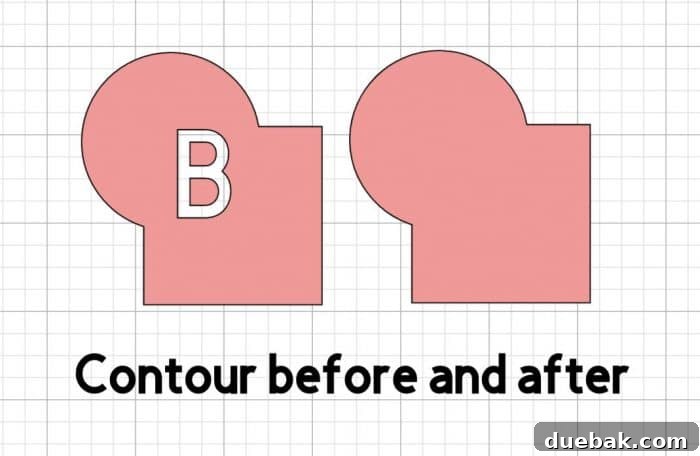
The Contour tool is a wonderfully efficient feature in Cricut Design Space that allows you to selectively hide or reveal specific cut paths within a single layer. Instead of slicing or welding to remove unwanted sections, Contour lets you simply tell your Cricut machine to “ignore” certain parts of a design when it cuts. This is particularly useful for intricate designs, text with interior cut-outs, or when you want to simplify an existing image without permanently altering its structure.
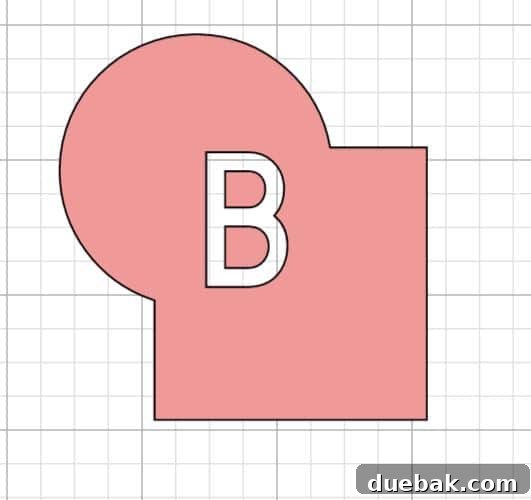
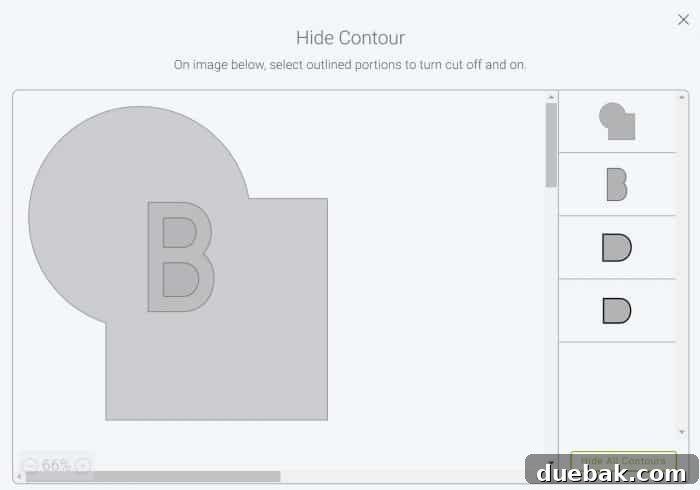
Let’s illustrate with an example. Suppose you have a shape, and within that shape, there’s a letter “B” cut out of it. However, for your current project, you don’t want the “B” to be cut; you just want the solid outer shape. Instead of trying to fill in the “B” with another shape or perform complex slicing, you would select the entire image layer and then click the Contour tool. This action will open a new window showing all the individual cut paths within that selected layer, along with a visual preview.
In the Contour window, you’ll see a list of all the tiny shapes and lines that make up your design. You can simply click on the pieces of the “B” that you do not want to be cut. As you click them, they will visually disappear from the preview window, indicating that their cut paths have been hidden. You can also hide/unhide all contours with a single click. When you close the Contour window, your main design canvas will update, showing the shape without the “B” cut out.
When it’s time to send your project to the Cricut machine, the letter “B” (or any other contoured-out shape) will be completely ignored; it won’t be cut. The beauty of Contour is that these hidden shapes are still part of the design layer. If you ever need them back, simply reopen the Contour window and unhide them. This non-destructive editing makes Contour a fast and flexible way to modify designs without permanently altering them, often saving time compared to more complex slicing or welding operations involving many small pieces.
It’s particularly useful for simplifying intricate SVG files downloaded from external sources, allowing you to easily remove small, unwanted internal cuts or text elements while keeping the main design intact. Mastering Contour gives you a precise level of control over your final cut project.

Elevate Your Crafting with Cricut Design Space Tools
By now, you should have a solid understanding of the core customization tools within Cricut Design Space: Group, Attach, Weld, Slice, Flatten, and Contour. Each tool serves a unique purpose, empowering you to manipulate shapes, text, and images with unprecedented control and precision. From organizing elements with Group to creating seamless designs with Weld, executing perfect print-then-cut projects with Flatten, and selectively hiding cuts with Contour, these features are essential for anyone serious about elevating their Cricut crafting.
The journey to becoming a Design Space pro is all about practice. Experiment with these tools regularly. Try different combinations, see how they interact, and don’t be afraid to click “Undo” to learn from your explorations. The more you use them, the more intuitive they will become, opening up a world of personalized gifts, intricate home decor, unique apparel, and stunning paper crafts. With these tools in your arsenal, you’re not just using your Cricut; you’re truly designing with it.
Ready to put your new knowledge into practice? Dive into Design Space today and start transforming your creative ideas into beautifully customized projects!
-
DIY Leather Journal Cover Tutorial (Cricut-Friendly & Reusable!)
Achieve a luxurious leather journal look without the high cost! This engaging DIY leather journal cover project is designed for use with faux leather and your Cricut Explore machine. Not only is this composition book cover an affordable and rewarding craft to make yourself, but its durable design also ensures it’s completely reusable, offering lasting style and functionality.
-
DIY Sloth Ornament
Relax and enjoy the creative process as you craft your very own DIY sloth ornament. These charming felt ornaments are perfectly sized to be made using your Cricut machine, making them a fun and easy project for crafters of all skill levels. They add a whimsical touch to any holiday decor or can be given as a thoughtful, handmade gift.
-
Trick or treat yourself
Looking for delightful yet simple Halloween craft projects? I’ve got you covered with this “Trick Or Treat Yourself” Halloween SVG file. This versatile design is perfect for creating custom t-shirts, festive decorations, unique trick-or-treat bags, and more. It’s an easy way to add a personalized touch to your spooky season celebrations, making crafting both fun and effortless.