Unleash Your Creativity: Make Your Own Custom Planner Stickers with Cricut
There’s nothing quite like the feeling of turning the page to a brand new year, or even a fresh month, in your planner! It’s an opportunity for a clean slate, to set new goals, and organize your resolutions. Whether you use your planner as a treasured scrapbook to preserve memories and photos, or as the central hub for all your ambitious to-do lists, one thing remains constant: adorable supplies make the planning process infinitely more enjoyable and easier to maintain. While I absolutely adore my Happy Planner, the truth is, no matter what planner style or brand you prefer, I have an incredible planner hack that will revolutionize your organization game. Imagine saving money and creating unique, personalized planner stickers instead of constantly buying them from craft stores. It’s time to skip the trip, embrace your inner DIY enthusiast, and craft your very own bespoke stickers!
Gone are the days of endlessly searching for the perfect sticker pack only to come up short. With a simple and fun DIY approach, you can design and create exactly what you envision, perfectly tailored to your planner’s aesthetic and your personal needs. This not only adds a unique touch to your planning but also makes the process a creative outlet in itself. Get ready to transform your planning experience from routine to extraordinary!
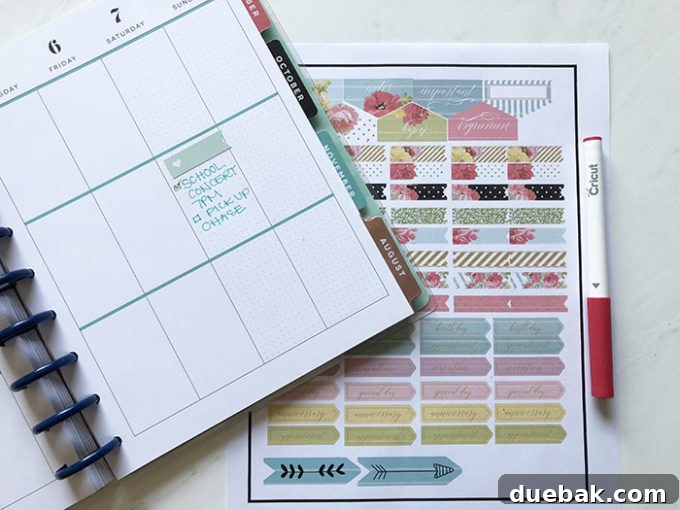
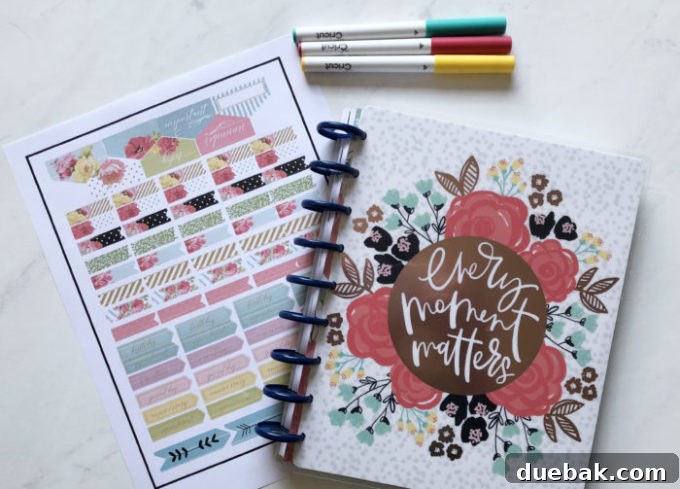
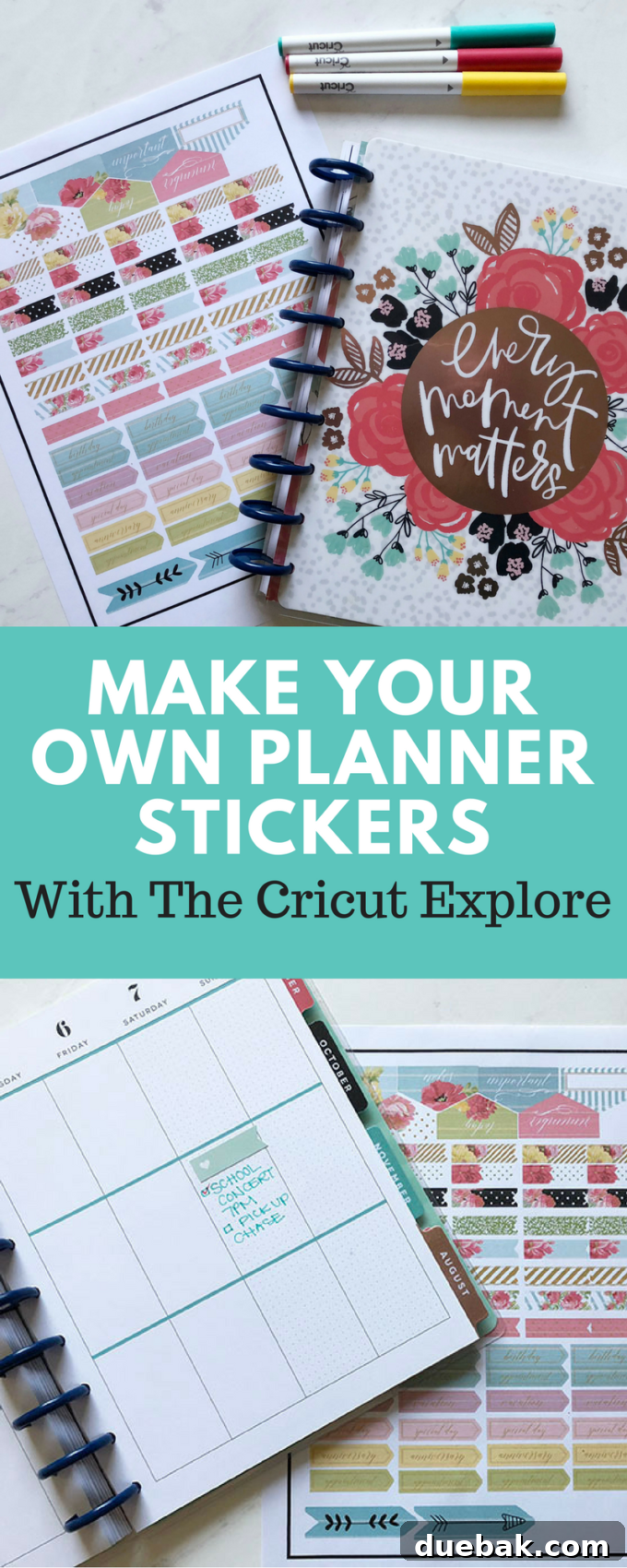
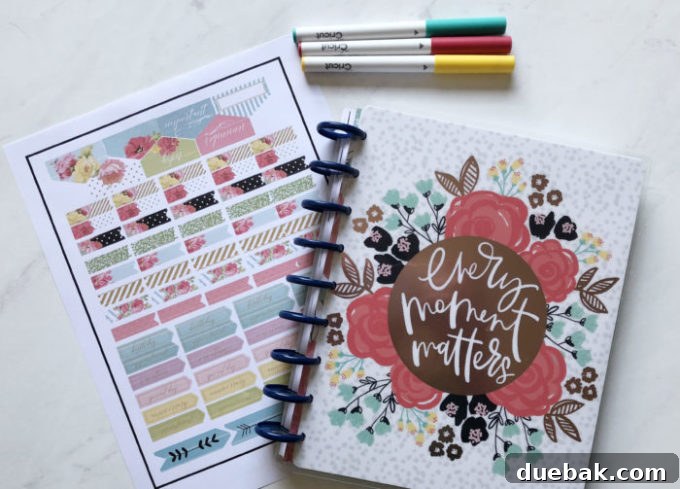
The secret weapon for crafting your own professional-looking planner stickers at home is the incredible Cricut Explore machine, particularly when utilizing its innovative “Print then Cut” feature. This revolutionary function allows you to design or select images, print them with your home printer, and then have your Cricut precisely cut them out, transforming ordinary paper into custom stickers in minutes. It’s an absolute game-changer for anyone looking to personalize their planners, journals, or any craft project.
Essential Supplies for Crafting Custom Planner Stickers
Embarking on your DIY planner sticker journey is incredibly rewarding, and gathering the right tools is the first step. With these essential supplies, you’ll be able to create a wide variety of functional and decorative stickers that perfectly match your style and organizational needs. Each item plays a crucial role in bringing your digital designs to life as tangible, peel-and-stick embellishments for your planner.
- Cricut Explore Machine: This versatile cutting machine is the heart of your sticker-making operation. The Cricut Explore Air 2, for example, offers incredible precision and ease of use, making it perfect for intricate cuts on various materials, including sticker paper. Its ability to “Print then Cut” is what makes it indispensable for creating professional-quality printable planner stickers.
- Printable Sticker Paper: Not all paper is created equal, especially when it comes to stickers. You’ll need high-quality printable sticker paper (either matte or glossy, depending on your preference) that is compatible with your home printer. This specialized paper has an adhesive backing, allowing your designs to be easily peeled and stuck into your planner once cut. Look for brands specifically designed for inkjet or laser printers, matching your printer type.
- Standard Grip Cutting Mat: Your Cricut machine uses a cutting mat to hold your material securely in place during the cutting process. A Standard Grip mat is ideal for most printable sticker papers, providing enough adhesion to prevent the paper from shifting without being so sticky that it damages your material when removed.
- Printer: A reliable inkjet or laser printer is essential for printing your sticker designs before the Cricut cuts them. The quality of your printer will directly impact the vibrancy and crispness of your final stickers. I personally love and use the Canon Pixma for its excellent color reproduction and consistent results.
The sticker designs I’m showcasing for this project are all readily available within Cricut Design Space. Many of these designs are included free with a Cricut Access membership, or they can be purchased individually if you prefer. To help you get started quickly, I’ve curated and saved two distinct collections of stickers. The first set draws from the charming Heidi Swapp collection, offering a blend of elegant and motivational elements. You can access these fantastic designs HERE. For those who love a touch of nature and whimsy, the fun floral stickers are sourced from Anna’s Planner Collection, available for your immediate use HERE. These pre-designed sets are perfect for beginners and provide a wonderful foundation for creating beautiful, custom planner pages.
Unlock Limitless Creativity with Cricut Access
Are you frequently using your Cricut machine? If you find yourself crafting with your Cricut at least a few times a month, then a Cricut Access membership is not just a convenience—it’s an absolute game-changer. For a devoted crafter like myself, it has proven to be an invaluable investment, opening up a world of creative possibilities without the constant need for individual purchases. But what exactly is Cricut Access, and is a membership plan truly right for you?
Cricut Access offers incredible value by providing monthly or yearly access to the entire Cricut Image Library. This vast collection boasts over 30,000 images, thousands of ready-to-make projects, and an extensive selection of fonts, allowing you to tackle almost any crafting idea you can imagine. Instead of purchasing each design element separately, which can quickly add up, Access bundles it all into one affordable subscription. It’s like having an all-inclusive craft resort at your fingertips, where you pay one price and can create to your heart’s content without worrying about additional costs for every image or font. For projects like these custom planner stickers, where multiple images and designs are often used, having a Cricut Access membership ensures that every single image is included, eliminating the need for individual purchases.
Cricut understands that crafters have different needs, which is why they offer three distinct plans to choose from: Cricut Access Fonts, Cricut Access Standard, and Cricut Access Premium. The Fonts plan is perfect for those primarily interested in the extensive font library. The Standard plan provides access to the full image and project library, making it ideal for most users. The Premium plan, available to Cricut machine owners, offers even more perks, including exclusive discounts on physical products and free shipping on orders over a certain amount. Plans can be purchased either by the month for flexibility or paid yearly for significant savings (you can find detailed information on their official page). Evaluating your crafting frequency and the types of projects you undertake will help you determine which Cricut Access plan offers the best value for your creative journey.
Mastering the Print Then Cut Feature for Perfect Stickers
The “Print then Cut” feature is what truly elevates your DIY sticker game, allowing your Cricut machine to precisely cut around printed designs. It’s a remarkably straightforward process once you understand the key steps, and it opens up a world of possibilities for creating vibrant, intricate planner stickers. Let’s walk through how to effectively use this powerful feature within Cricut Design Space.
Begin by selecting or designing the images you wish to transform into stickers. Once your design is laid out on the canvas in Cricut Design Space, the most critical step for “Print then Cut” is to ensure your images are “flattened.” Flattening combines all selected layers (images, text, shapes) into a single, printable layer while preserving the visual appearance of each element. This tells your Cricut that everything within that selection should be printed as one cohesive image and then cut as a single shape around its outermost perimeter. You can achieve this by selecting all the items you want to include in your sticker, then choosing “Actions” from the bottom menu, and finally selecting “Flatten.” Alternatively, you can select an item, go to the layers panel, and change the layer style from the default “Cut” (represented by scissors) to “Print” (represented by a printer icon). This ensures your machine knows to print the design first before making any cuts.
Pro Tip for Optimal Cutting: If you’re working with intricate images, especially those that include text, quotes, or delicate designs without a solid background, your Cricut might struggle to cut them cleanly or efficiently. To prevent this and ensure faster, smoother cuts with less delicate detail work, simply add a white square or rectangle shape behind your design. Adjust its size to encompass your design, then arrange it to the back. Crucially, remember to select both the background shape and your design, then “Attach” them together, and finally “Flatten” them. Attaching ensures they move together, and flattening merges them into a single printable layer with a defined outer edge for your Cricut to cut around, significantly improving the cutting process.
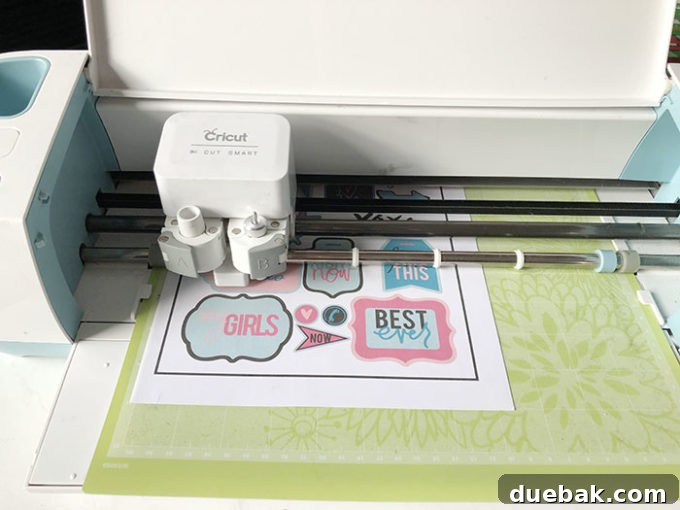
Once your design is flattened and ready, send it to your printer. Your printer will output the design onto your chosen printable sticker paper, including a black registration mark rectangle around the perimeter. This registration mark is vital; it’s what your Cricut machine reads to know exactly where to cut your printed design. After printing, place your sticker paper onto your Standard Grip cutting mat, aligning it carefully with the top-left corner as indicated in Design Space. Load the mat into your Cricut machine, and it will scan the registration marks before precisely cutting out each of your beautiful, custom planner stickers.
For a visual guide and to see the Print then Cut feature in action, check out this helpful tutorial:
Do you have specific questions about a Cricut machine or need further guidance on troubleshooting common issues? I’ve compiled my most frequently asked questions and their comprehensive answers into a detailed guide. This resource is designed to help you navigate your Cricut journey with confidence and get the most out of your machine, whether you’re a beginner or looking to refine your skills.
Expand Your Creative Horizons with Cricut
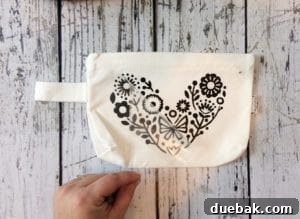
The world of Cricut crafting extends far beyond just planner stickers! From personalized apparel and home decor to custom cards and intricate paper crafts, the possibilities are virtually endless. If you’ve enjoyed creating these custom planner stickers, you’ll be thrilled to explore more ways to unleash your creativity with your Cricut machine. Discover a wealth of inspiration, tutorials, and project ideas tailored for every skill level. See all my Cricut projects and ideas here.
Creating your own planner stickers with a Cricut is a fantastic way to personalize your planning, save money, and express your unique style. It transforms a functional tool into a creative masterpiece, making daily organization a joy rather than a chore. Embrace the satisfaction of DIY and watch your planner pages come to life with designs that are truly yours.
Pin for later inspiration: