
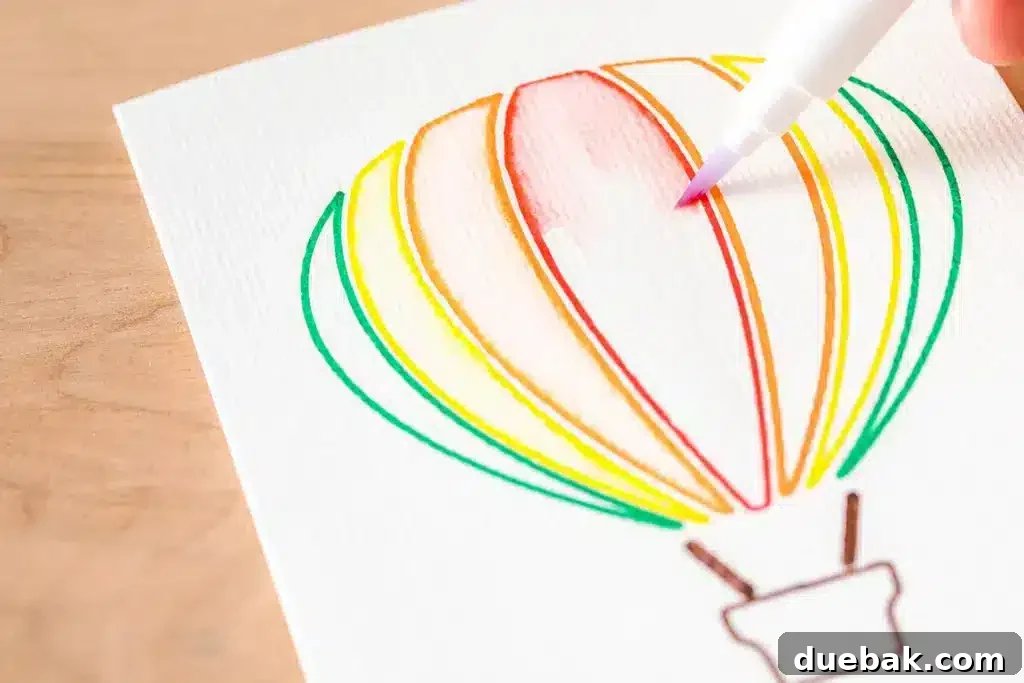
Unlock the Art of Watercolor with Cricut: A Comprehensive Guide to Markers, Cards & Creative Blending
Cricut continues to push the boundaries of creative crafting, consistently introducing innovative tools and materials that empower makers of all skill levels. Among their latest exciting offerings are the Cricut Watercolor Markers and Watercolor Cards, designed to bring the beauty of watercolor art effortlessly into your projects. Imagine drawing intricate designs with your Cricut machine, then transforming them into vibrant, blended masterpieces with just a splash of water. This guide will walk you through everything you need to know to create stunning watercolor effects in your card making and beyond.
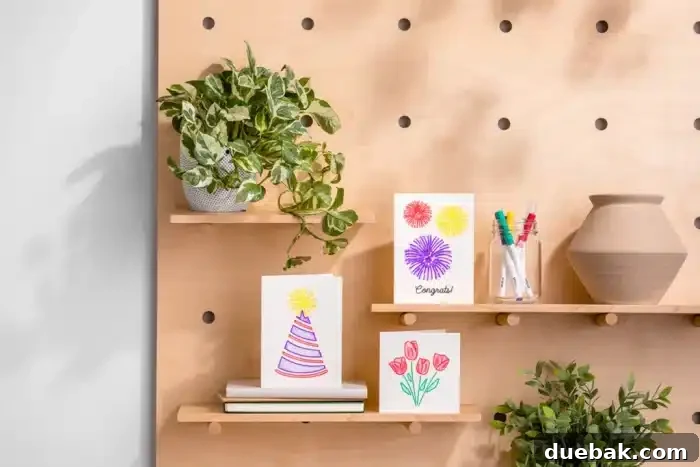
If you’re looking to explore new artistic mediums and infuse your crafts with a touch of elegance, experimenting with watercolor effects is a fantastic way to elevate your creations. From personalized greeting cards to unique art prints, the possibilities are boundless when you combine the precision of your Cricut machine with the fluid beauty of watercolor.
Introducing the Cricut Watercolor Marker Set: Colors and Capabilities
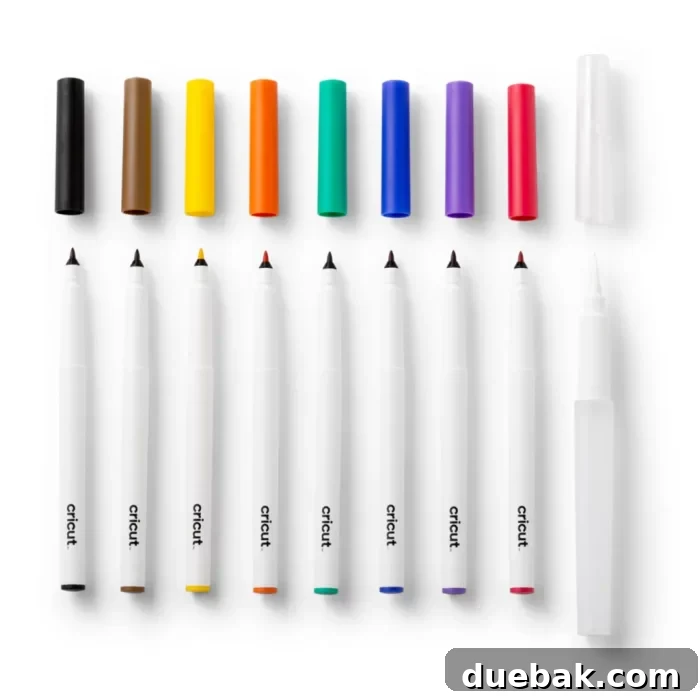
The Cricut Watercolor Marker set is your gateway to a world of expressive artistry. Each set comes equipped with 8 vibrant 1.0 mm Watercolor Markers, offering a diverse palette including Green, Blue, Purple, Red, Black, Brown, Yellow, and Orange. These markers are specially formulated to lay down rich, water-soluble pigment that reacts beautifully when activated with water, creating those signature watercolor washes and blends.
Beyond the markers, the set thoughtfully includes a 4.0 mm Water Brush. This isn’t just any brush; it’s a crucial tool designed specifically for blending the drawn lines into captivating watercolor designs. The water brush features a refillable barrel, allowing you to control the amount of water released onto your project. It’s important to note that while the markers are used with your Cricut machine for drawing, the Water Brush is an entirely manual tool, used after your design has been drawn and removed from the machine. This two-step process—machine precision followed by artistic freedom—is what makes this system so unique and enjoyable.
Understanding Cricut Watercolor Cards: The Perfect Canvas
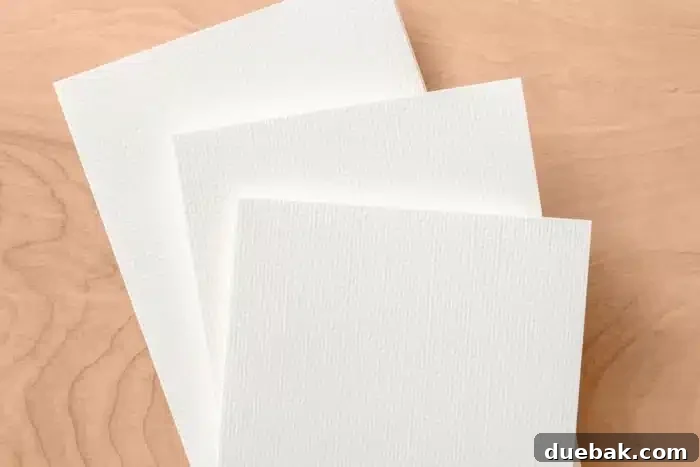
To achieve the best watercolor results, the choice of paper is paramount. Cricut addresses this with their dedicated Cricut Watercolor Cards. These cards are crafted from high-quality, cold-pressed watercolor paper, renowned for its ability to absorb water evenly and prevent warping or buckling. The textured surface of cold-pressed paper is also excellent for holding pigment and facilitating beautiful blends, making it the ideal canvas for your watercolor creations. These specialized cards can be seamlessly used with any Cricut machine, including the Cricut Joy, Cricut Explore Air 2/3, and Cricut Maker series.
For ease of use and precise placement, Cricut Watercolor Cards are engineered to work with the Cricut Card Mat. There are two main types of card mats: an individual card mat designed specifically for the compact and efficient Cricut Joy machine, and a larger 2×2 card mat compatible with the more versatile Cricut Maker and Explore machines. These mats feature a unique design with a plastic divider and an adhesive surface, allowing you to effortlessly slide a folded card underneath, exposing only the front surface for drawing and cutting, ensuring perfect alignment every time.
Cricut Watercolor Card Sizes: Finding Your Perfect Fit
Cricut Watercolor Cards are available in a range of popular sizes to suit various card-making needs. You can find them in:
- R20: 4.25 in x 5.5 in (ideal for standard A2 cards)
- R40: 4.75 in x 6.6 in
- S40: 4.75 in x 4.75 in (square cards)
It’s crucial to select the correct card size for your machine and mat. If you are using the Cricut Joy, you must use the smallest card size, R20, to fit properly onto its dedicated card mat. The R40 and S40 cards are larger and are not compatible with the Cricut Joy Card Mat; they are designed exclusively for use with the Cricut Card Mat 2×2 on Cricut Explore or Maker machines. Always double-check your card size against your machine and mat capabilities to ensure a smooth crafting experience.
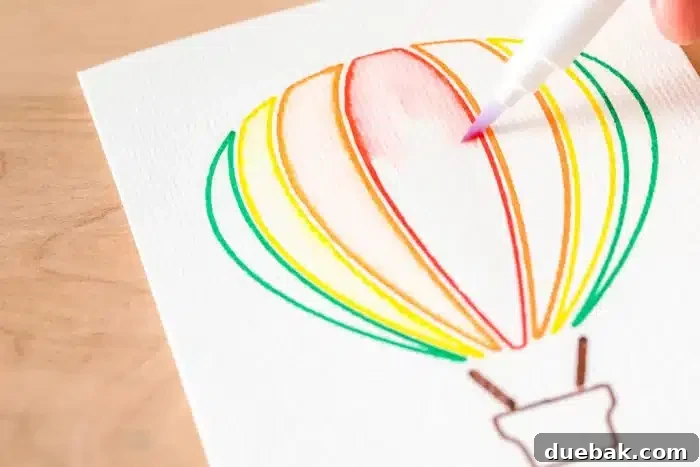
Choosing the Best Designs for Cricut Watercolor Markers
The success of your watercolor project largely depends on selecting the right design. Cricut Design Space offers a treasure trove of images specifically optimized for watercolor markers and cards. To find these, simply search “Watercolor Marker” in the Cricut Design Space image library. This will display a curated collection of designs that are perfect for blending.
Beyond the dedicated watercolor designs, many existing drawing images in Design Space can also be used effectively. When browsing, filter your image search for “Draw” or “Cut and Draw” operations. Look for designs that feature clear, distinct lines and, ideally, multiple colors. These types of designs provide natural boundaries for your blending and help prevent colors from merging unintentionally into a muddy mess.
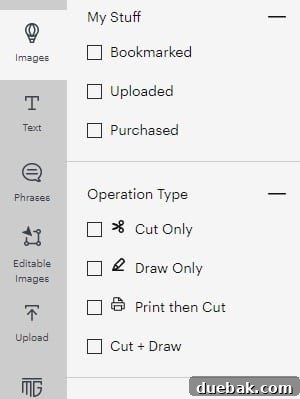
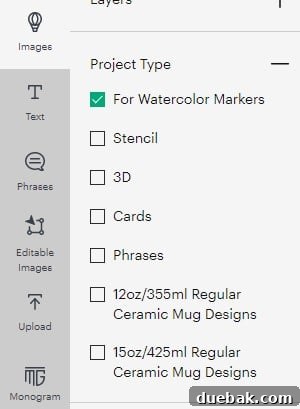
When selecting or modifying designs, pay close attention to the spacing between colors. Simple line art with defined areas for each color works best. It’s ideal if the different colored lines do not touch, or if there’s enough white space between colored sections. This separation allows you to blend each color individually without them immediately bleeding into each other when water is applied. Designs with overly intricate, overlapping lines or very dense areas of a single color may be more challenging to blend cleanly.
Pro Tip: Opt for simple line art designs that incorporate multiple colors. Designs where lines of different colors do not touch, or have sufficient space between them, will yield the best blending results. This prevents colors from merging undesirably when activated with water.
I also create many designs suitable for various Cricut projects, including watercolor. If you have a Cricut Access subscription, you can explore and use my designs without additional cost. Feel free to check out my Design Space profile here for inspiration and unique creations.
Mastering Blending with the Water Brush: Techniques for Stunning Effects
The magic truly happens when you introduce water to your drawn design. The Water Brush, included in your marker set, is the key to unlocking vibrant watercolor effects. Here’s how to master its use:
- Prepare Your Brush: Unscrew the barrel of the Water Brush and fill it with clean water. Re-screw the barrel tightly. Gently squeeze the barrel to push water into the bristles, dampening them thoroughly.
- Remove Excess Water: Before touching your project, dab the brush onto a clean paper towel or cloth. You want the bristles to be damp, not dripping. Too much water can oversaturate your paper and cause colors to bleed uncontrollably.
- Start Blending: Begin by lightly tracing along the drawn artwork, working on the inside of each colored section. The water will react with the marker pigment, causing it to spread and create a soft, blended wash.
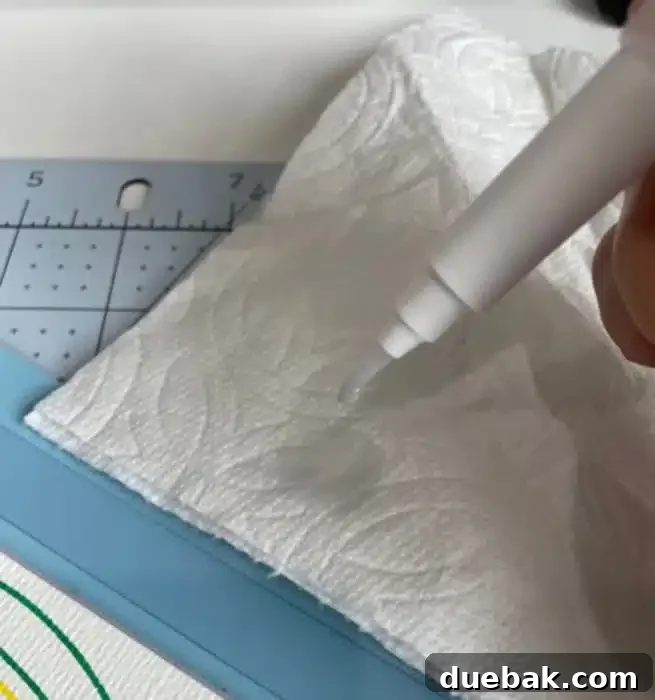
For filling larger areas, use short, even strokes, pulling the color from the drawn lines inward. Experiment with pressure: lighter pressure will create subtle washes, while slightly more pressure can release more pigment for deeper tones. To switch between colors or clean your brush, simply wipe it onto a paper towel while gently squeezing the barrel to flush out residual pigment. Continue until the brush runs clear.
Don’t be afraid to layer colors or blend different hues together, especially in areas where colors are meant to transition. Patience is key here; work in small sections and allow layers to dry slightly if you want to prevent them from completely merging. Once you are satisfied with your blending and the watercolor effects, allow the card to dry completely. This is crucial for preventing smudging or warping. I typically let mine sit for a few hours, or even overnight, to ensure the paper is fully dry and the colors are set.
Step-by-Step: How To Use Cricut Watercolor Markers And Water Brush Set
Supplies You’ll Need:
- Your preferred Cricut machine (e.g., Cricut Joy, Explore Air 2/3, Maker series)
- Cricut Design Space software
- Cricut Watercolor Cards (ensure correct size for your mat/machine)
- Cricut Watercolor Markers set
- Cricut Water Brush (included in the Watercolor Markers pack)
- Clean water (for the brush)
- Clean towel or paper towel (for dabbing excess water and cleaning brush)
Directions To Use Cricut Watercolor Markers On Your Machine:
Follow these simple steps to create stunning watercolor cards using your Cricut machine and the Watercolor Marker set.
- Launch Design Space and Select Your Design
Open Cricut Design Space on your computer or mobile device. Browse the image library or your saved projects to choose a design suitable for watercolor markers. Add your chosen design to the canvas.
- Set Operation to Draw and Assign Colors
With your design selected on the canvas, navigate to the ‘Linetype’ or ‘Operation’ panel. Change the operation from ‘Cut’ to ‘Draw’. Then, select the specific colors of Cricut Watercolor Markers you will be using for your design. This is an important step as it instructs your Cricut machine when to prompt you to switch out markers during the drawing process, ensuring each part of your design is drawn in the intended color.
- Precisely Size Your Image
Adjust the dimensions of your design to perfectly fit the specific Cricut Watercolor Card size you intend to use. Ensure the design will be centered and proportional on the card for the best aesthetic outcome.
- Initiate the ‘Make It’ Process
Click on the ‘Make It’ button in Design Space. If prompted to select a load type, ensure you choose ‘On Card Mat’. This tells the machine you’re using a card and a specialized mat. Then, select ‘Continue/Next’. On the next screen, verify that the ‘Material Size’ selector accurately matches the size of the watercolor card you have. If you wish to create multiple copies, adjust the ‘Project Copies’ setting as needed. Finally, select ‘Continue/Next’ to proceed.
- Select Your Material Type
From the material settings screen, select ‘Browse All Materials’ and then search for and choose ‘Watercolor Card’. This setting ensures your Cricut machine applies the correct pressure and speed for drawing on the cold-pressed watercolor paper.
- Prepare and Attach Your Card to the Mat
Carefully remove the clear protective cover from your Cricut Card Mat. Gently slide your chosen Cricut Watercolor Card onto the card mat from the left side. The back folded portion of the card should slide underneath the plastic divider, while the front of the card adheres to the sticky portion of the mat. Ensure the card is perfectly aligned to the top-left corner, sitting flush against both edges. Once aligned, press the card firmly onto the adhesive mat to secure it in place, preventing any shifting during the drawing process.
- Insert the Mat into Your Machine and Draw
Load the prepared card mat into your Cricut machine, following the on-screen prompts or machine specific instructions (e.g., pressing the blinking Load/Unload button). Insert the Cricut Watercolor Markers into the clamp as directed by Design Space, switching colors when prompted. Once the drawing is complete, unload the mat, carefully remove your beautifully drawn watercolor card, and proceed to the blending step with your Water Brush.
Frequently Asked Questions About Cricut Watercolor Markers
While Cricut Watercolor Cards are specifically designed for optimal results, you can certainly experiment with other watercolor papers. Look for high-quality, cold-pressed watercolor paper in various weights (e.g., 90lb or 140lb). However, avoid using regular printer or copy paper. These papers are not designed to handle water and will wrinkle, buckle, and tear, resulting in a less-than-desirable finish for your beautiful watercolor art.
Yes, you can absolutely create designs on both sides of a Cricut Watercolor Card! However, it is imperative to apply water and blend only one side at a time. Allow the first side to dry completely before attempting to work on the second side. This prevents oversaturation, warping, and colors bleeding through to the opposite side, ensuring both designs maintain their integrity and vibrancy.
To extend the life of your Cricut Watercolor Markers, always store them horizontally when not in use. This prevents the ink from settling to one end, which can cause the tips to dry out or become oversaturated. Ensure the caps are securely placed back on each marker after use to prevent drying.
While the Cricut Water Brush is optimized for these markers, you can certainly use other water brushes or even traditional soft-bristled paintbrushes with a cup of water. The key is to control the amount of water applied. Water brushes offer convenience with their self-contained water reservoir, but any tool that allows for precise, gentle application of water will work. Experiment to find what feels most comfortable for your blending style.
If colors are bleeding excessively, it’s often due to too much water. Ensure your Water Brush is just damp, not soaking wet, by dabbing off excess water on a paper towel. Also, try to work in smaller sections and allow one color to dry slightly before blending an adjacent color, especially if their lines are very close. Choosing designs with more white space between colors, as discussed earlier, can also significantly help.
Happy Crafting! Dive into the vibrant world of watercolor with your Cricut machine and create breathtaking, personalized pieces that truly stand out.