
Cricut Design Space for Beginners: Your Ultimate Getting Started Guide
Just unboxed your new Cricut machine and feeling a bit overwhelmed? Wondering what to do after the initial setup? This is your essential starting point! Dive into the fundamental aspects of Cricut Design Space, tailored for beginners and applicable to all Cricut models, helping you transform your creative ideas into stunning projects.
Cricut Design Space is the powerful, intuitive software that serves as the command center for your Cricut cutting machine. It’s where all the magic happens: you choose designs, craft new creations, customize every detail, and send your projects to your Cricut machine for precise cutting, drawing, scoring, or engraving. This comprehensive tutorial is designed for users of every Cricut model, ensuring that whether you own a Cricut Explore, Cricut Explore One, Cricut Explore Air, Cricut Explore Air 2, Cricut Maker, or Cricut Joy, you’ll gain the foundational knowledge to begin your crafting journey with confidence.
Getting Started with Cricut Design Space
Before you can unleash your creativity, the first step is to get Cricut Design Space installed and ready. Head over to Design.Cricut.com to download the software directly to your desktop or laptop computer. If you prefer designing on the go, you can also download the Cricut Design Space app from your device’s app store (available for iOS and Android tablets and smartphones). Once downloaded, simply install the software and create your free Cricut account. This account is crucial as it stores all your projects in the cloud, allowing you to access them from any device, anywhere. With your software installed and account set up, you’re officially ready to explore!
Cricut Design Space is primarily divided into two main sections: the **Home Page** and the **Canvas**. The Home Page acts as your starting point, offering a gateway to new project ideas, saved creations, and important announcements. The Canvas, on the other hand, is your digital workspace—the area where you’ll bring your designs to life, arranging elements, customizing texts, and refining every detail before sending it to your machine.
Exploring the Home Page: Your Cricut Starting Point
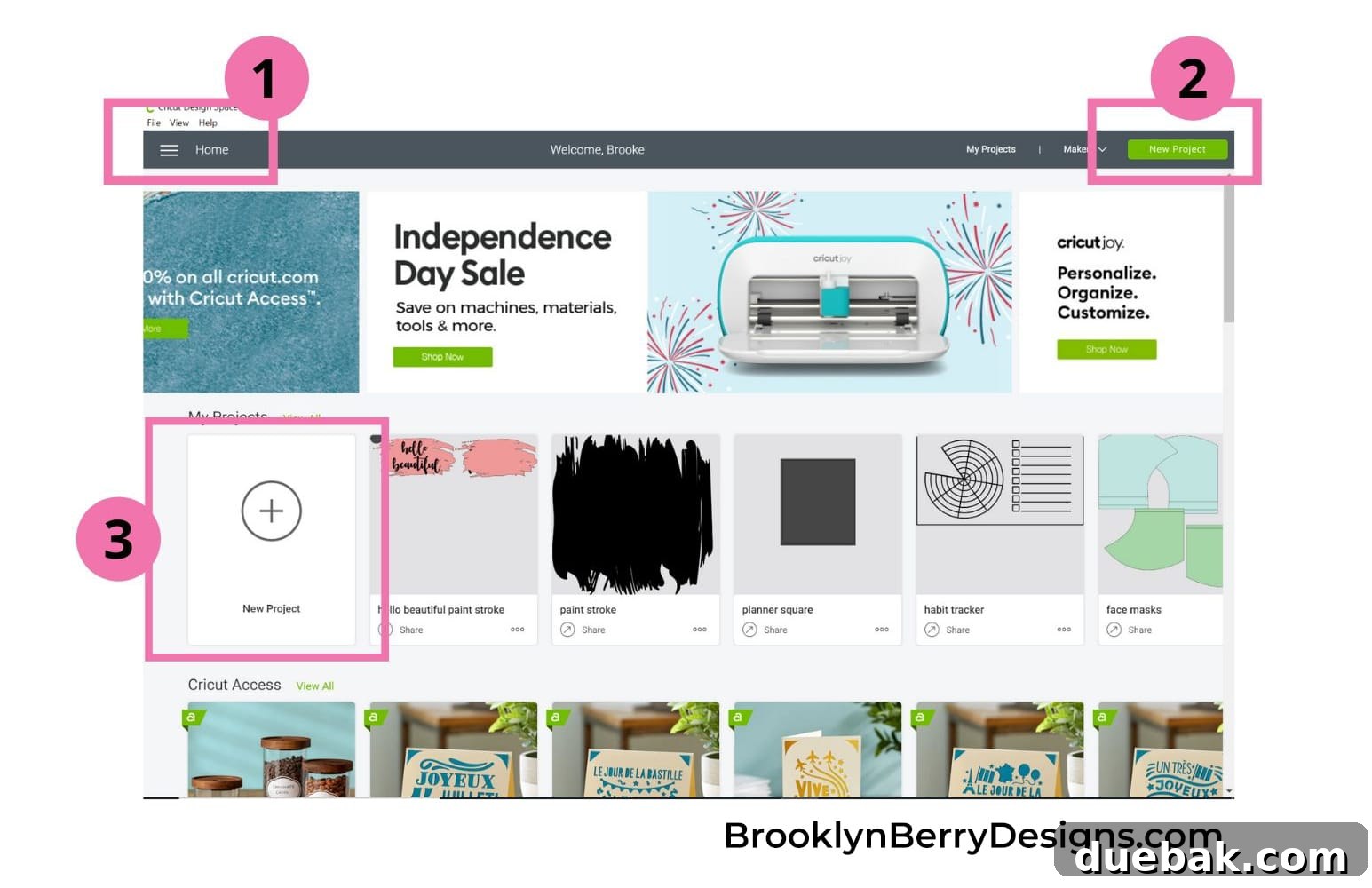
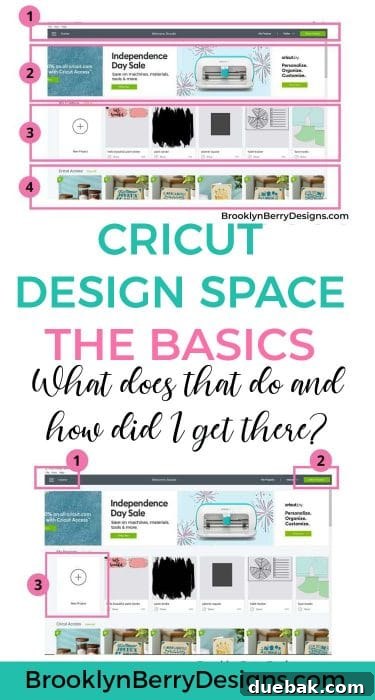
Upon opening Design Space, the first view you’ll encounter is the Home Page. This dynamic hub is designed to inspire and guide you, offering quick access to various features and projects. It’s thoughtfully organized into four key areas, ensuring you can easily navigate and find what you need to kickstart your next crafting adventure.
The Four Core Sections of the Home Page
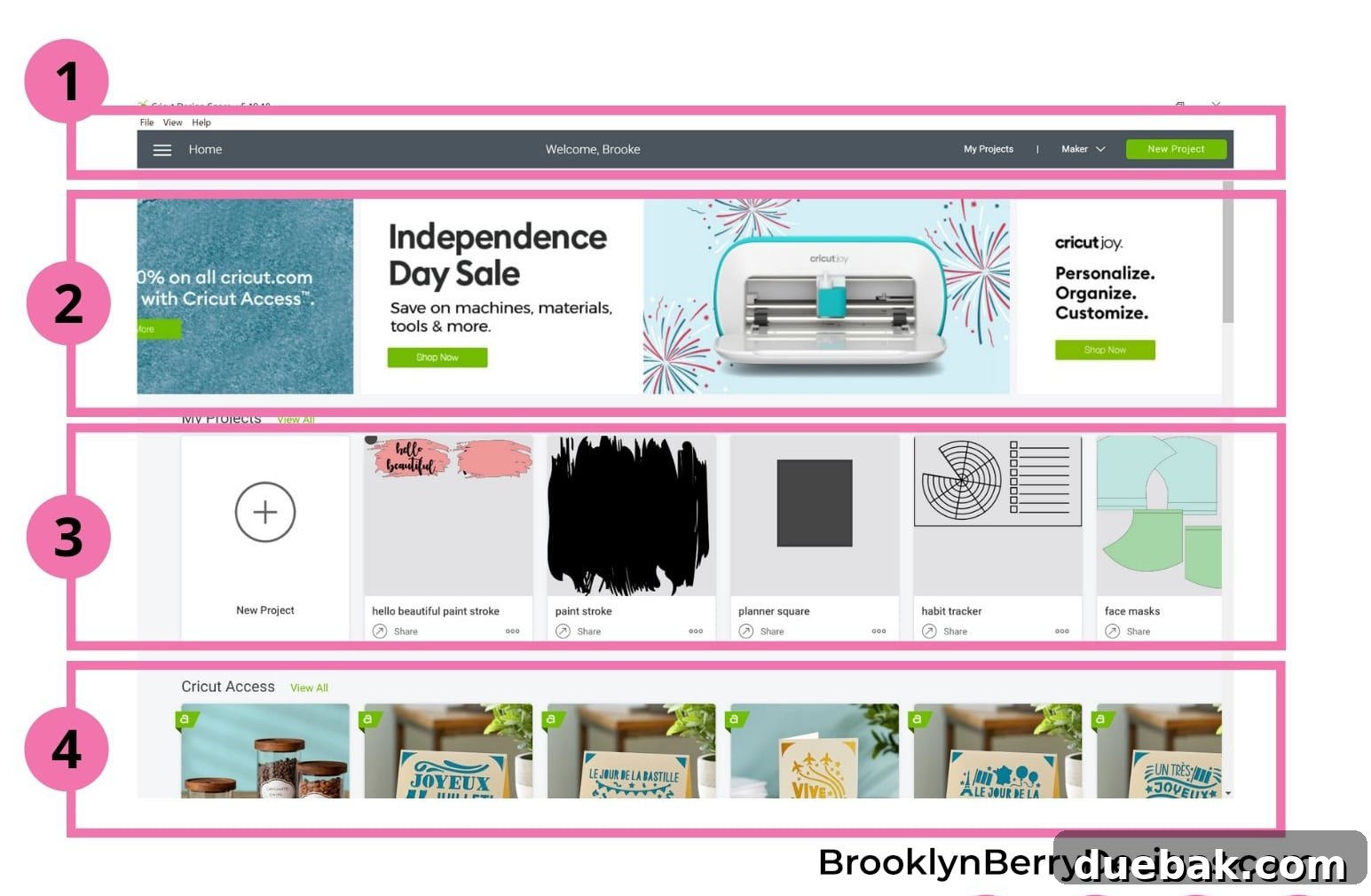
- Header: The top navigation bar, offering essential tools and settings.
- Banner: A rotating display of featured content, offers, and news.
- My Projects: A personalized gallery of your recently created or saved designs.
- Ready To Make Projects: Curated collections of pre-designed projects sorted by category.
1. The Header: Your Main Navigation
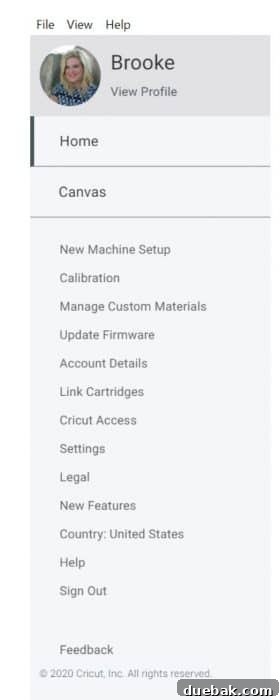
Located at the very top, the Header provides vital access to various functions. On the left, you’ll find the iconic menu icon, often referred to as the “hamburger menu.” Clicking this icon reveals a comprehensive dropdown menu that lets you effortlessly switch between the Home Page and the Canvas, ensuring a smooth workflow as you move from browsing to designing.
Beyond navigation, this menu houses critical settings and utilities. Here, you can initiate a New Machine Setup if you’ve recently acquired a new Cricut. The Calibration option is essential for tasks like Print Then Cut, ensuring perfect alignment between printed images and their subsequent cuts. Under Account Details, you can manage your personal information and subscription status. For those with older physical cartridges, the Link Cartridges feature allows you to digitize and access those designs within Design Space. Explore Cricut Access to learn more about the subscription service that unlocks an expansive library of images, fonts, and ready-to-make projects. The Settings tab is particularly useful; it allows you to customize your Design Space experience, such as toggling the grid lines on or off on the Canvas for a cleaner workspace or adjusting measurement units between inches and centimeters to suit your preference. Finally, the Help section provides access to troubleshooting, tutorials, and support resources.
2. The Banner: Stay Updated and Inspired
The Banner area is a dynamic carousel that rotates through a series of featured slides. This is your go-to spot for staying informed about the latest Cricut news. Here, you’ll discover announcements about new product releases, special offers and promotions, important software maintenance updates, and fresh design trends or tutorials. Regularly checking the banner ensures you don’t miss out on valuable resources or exciting opportunities to enhance your crafting.
3. My Projects: Your Personalized Creative Portfolio
Below the banner, you’ll find “My Projects.” This section beautifully displays your personal creations, conveniently sorted by the most recently opened. It serves as your personal portfolio within Design Space, making it easy to pick up where you left off or revisit favorite designs. If your collection grows large, simply click on “VIEW ALL” to browse through your entire library of saved projects. This dedicated area allows for efficient searching, enabling you to quickly locate a specific design you’ve worked on in the past.
4. Ready To Make Projects: Instant Inspiration
For instant inspiration or when you’re looking for a quick, guided project, the “Ready To Make Projects” section is invaluable. These organized banners showcase a diverse range of projects, pre-designed and ready for you to create. You can explore projects included with your Cricut Access subscription, browse by specific material types (like vinyl, cardstock, or iron-on), or even filter by machine compatibility. This feature is perfect for beginners who want to jump right into crafting with proven designs, offering a fantastic way to learn the ropes and explore different crafting techniques without starting from scratch.
The Canvas: Your Digital Design Studio
Once you’ve explored the Home Page, your next destination for hands-on creativity is the Canvas. This is the heart of Design Space, where you’ll conceptualize, design, and assemble all your projects. There are several convenient ways to access the Canvas from the Home Page, making your transition seamless:
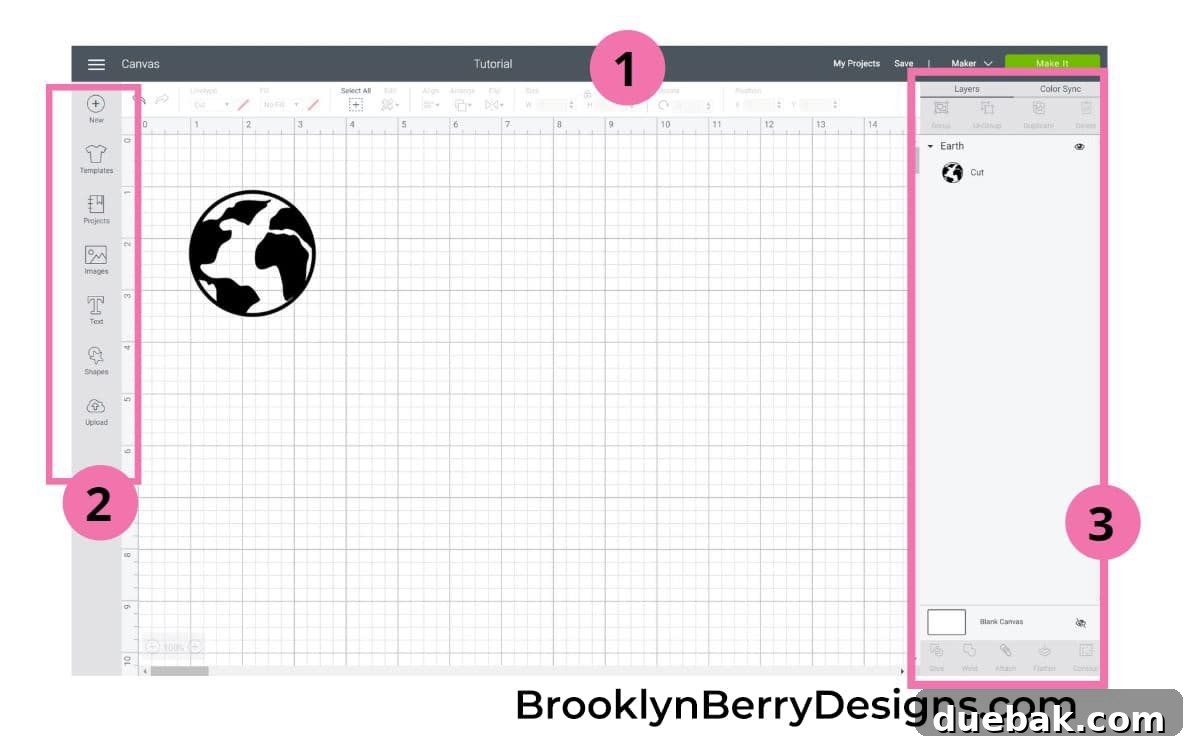
The Canvas itself is meticulously structured with three primary areas, each containing specific toolbars essential for your design process: (1) the **Header** at the top, (2) the **Design Panel** on the left side, and (3) the **Layers Panel** on the right side. Understanding these areas is key to navigating Design Space effectively, and you’ll see them clearly labeled in the image below:
1. The Canvas Header: Essential Project Controls
The Header section of the Canvas is more than just a title bar; it holds crucial controls for your project. On the far left, you’ll still find the familiar hamburger menu for navigating back to the Home Page or accessing global settings. Centrally, it displays your project’s name, reminding you to save your work frequently. A critical feature here is the **machine selection menu**. Always ensure you select the specific Cricut machine you intend to use for your project (e.g., Maker, Explore Air 2, Joy). This selection is vital because it tailors the available tools, materials, and cutting options to your machine’s capabilities, preventing potential errors or unexpected results. On the far right, you’ll see the prominent green Make It button. This is your final step once your design is complete, leading you to the mat preparation screen where you confirm material settings and arrange your cuts.

2. The Design Panel: Your Creative Toolbox
The Design Panel, located on the left side of the Canvas, is your primary toolbox for adding and manipulating design elements. Each button here unlocks a different creative possibility:
New
Clicking “New” provides a fresh, blank canvas, clearing all current elements and allowing you to start a new project from scratch. It’s perfect for when you want to begin with a clean slate without closing Design Space entirely.
Templates
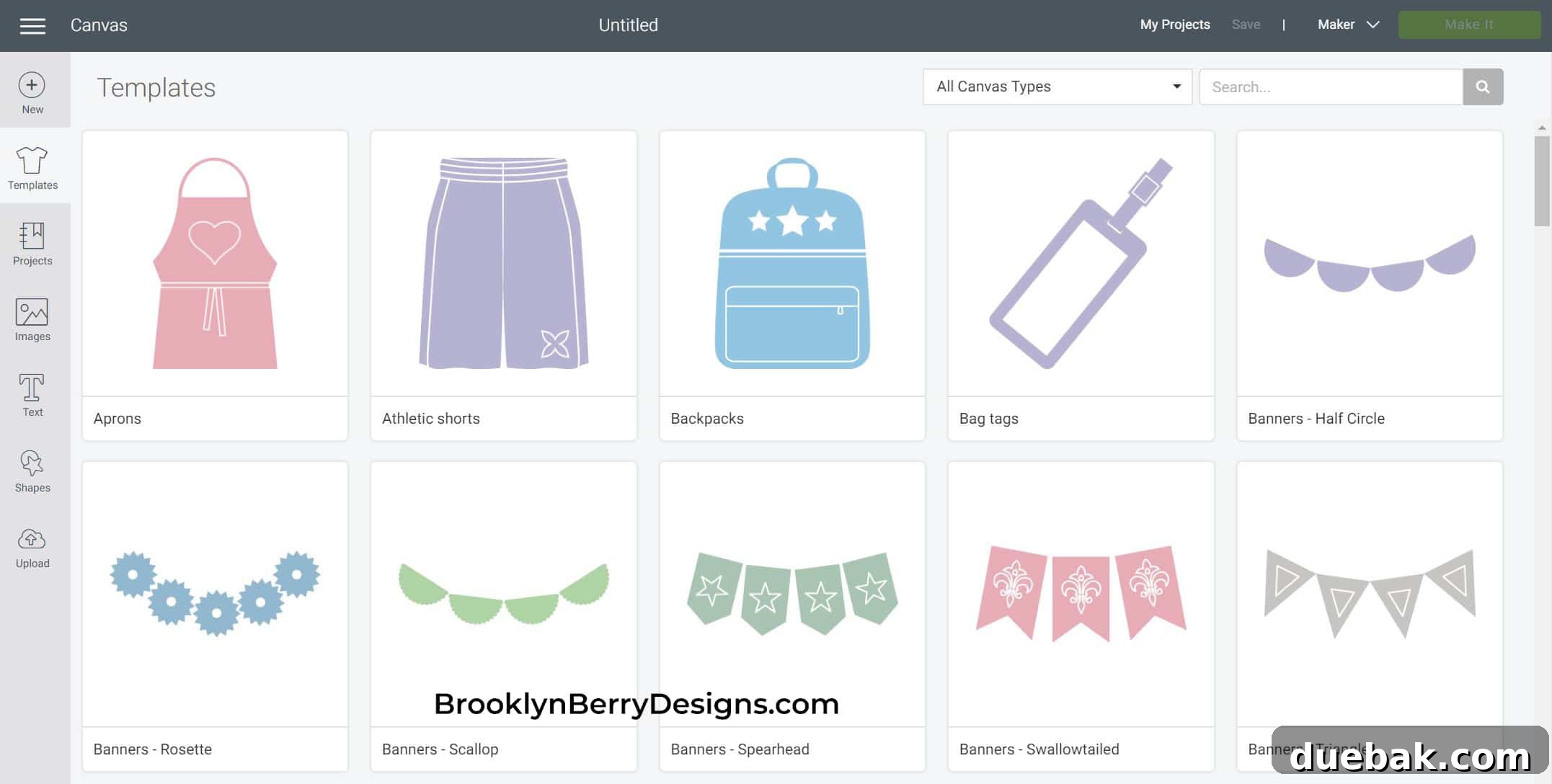
Templates are an incredibly helpful feature, especially for visualizing your designs in context. These are non-cutting reference images that appear on your Canvas, simulating real-world items like t-shirts, mugs, cards, or even walls. They provide a visual guide for size and scale, allowing you to accurately size your design to fit your blank item. For example, if you’re making a t-shirt design, you can select a t-shirt template to ensure your graphic is perfectly proportioned before you even cut. Remember, templates are strictly for reference and will never be sent to your Cricut machine for cutting.
Projects
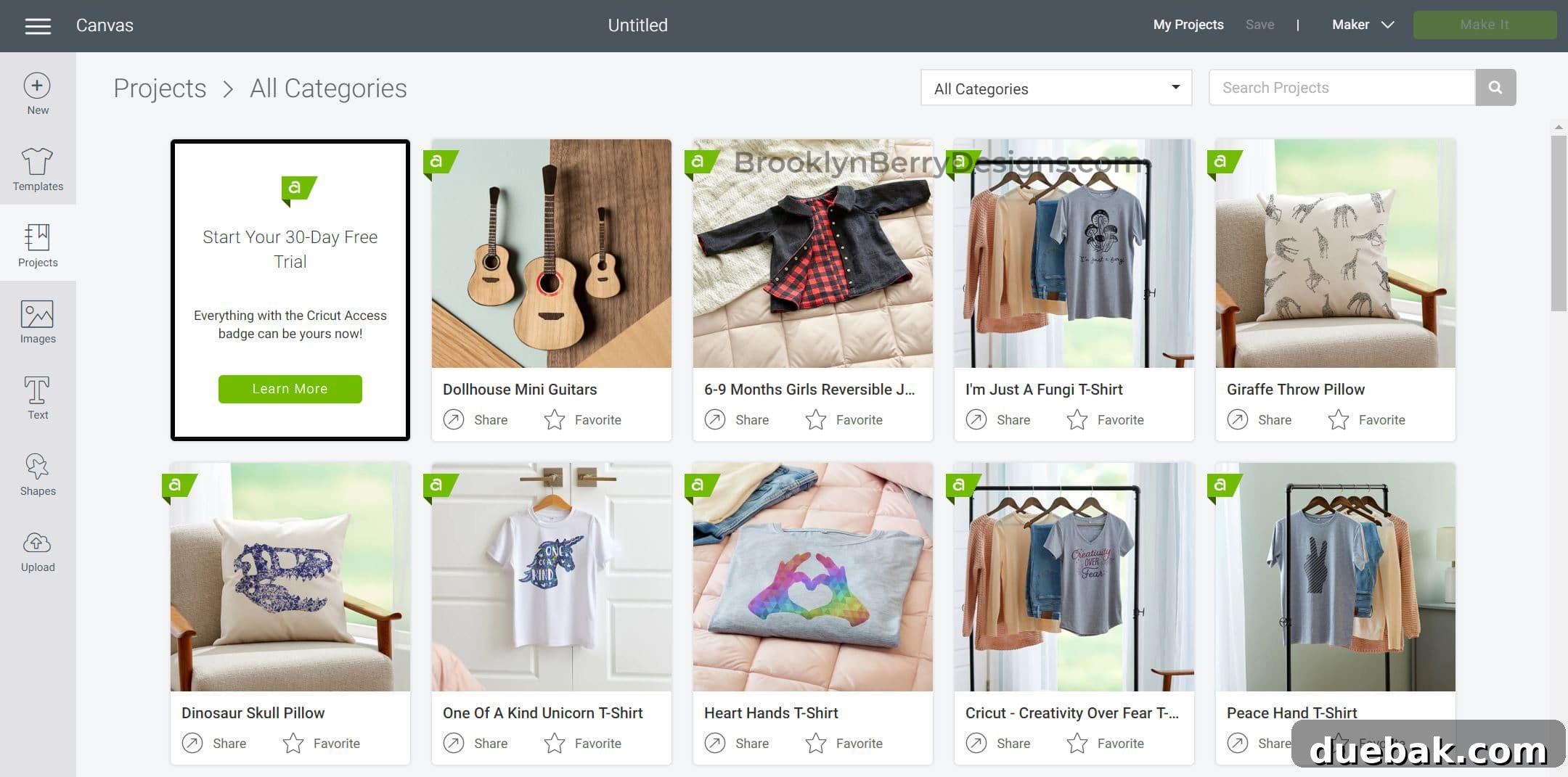
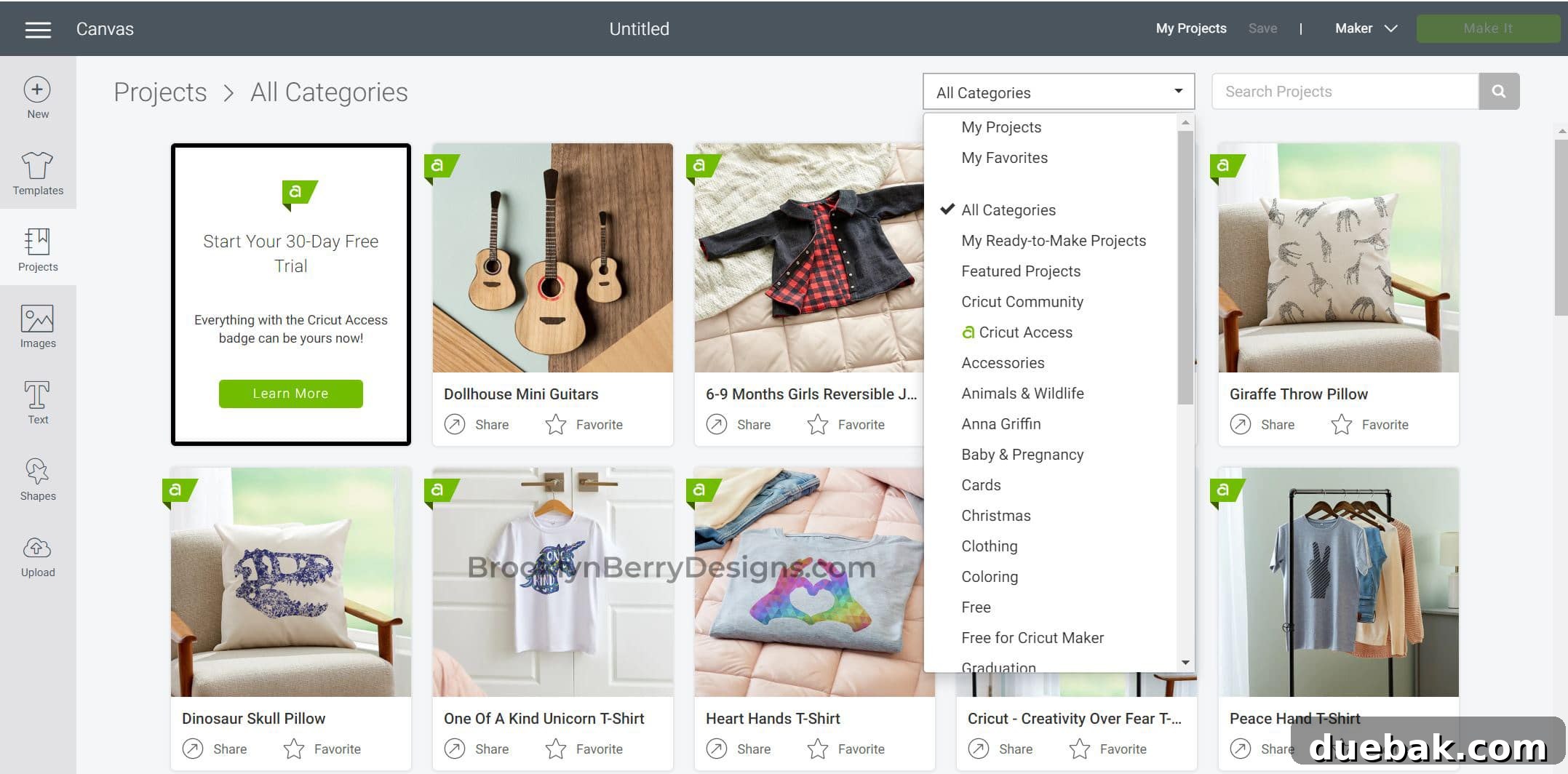
This button opens a vast library of ready-to-make projects, similar to those on the Home Page but directly accessible from your design canvas. Here, you can search for project ideas, explore various crafting categories (such as cards, home decor, fashion, party favors), or filter by season, event, or material type (like Infusible Ink, Iron-On, or projects requiring the Knife Blade or Sewing tools). These projects are often fully customizable, providing a fantastic foundation to learn new techniques or simply create something beautiful with minimal effort.
Images
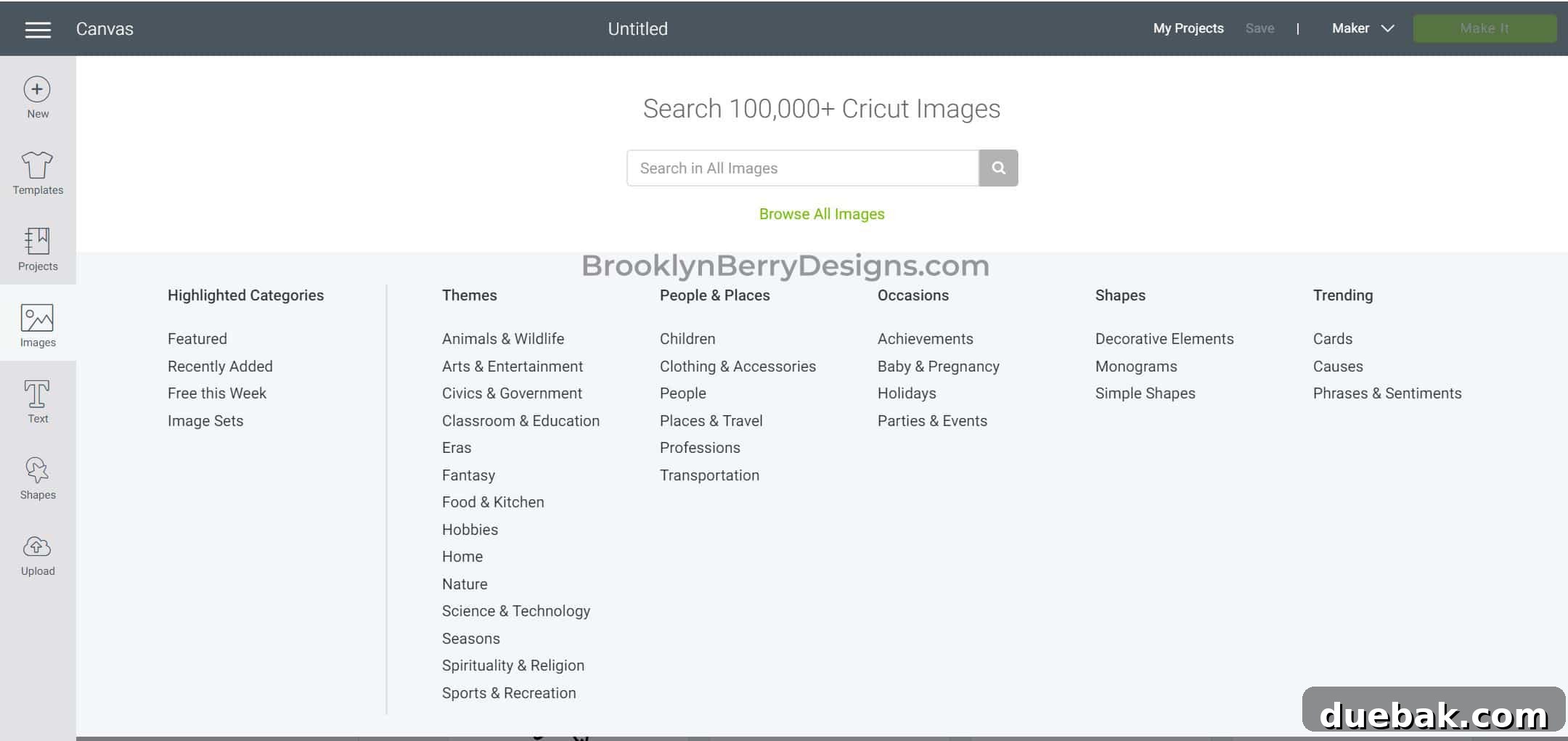
The Images button grants you access to the extensive Cricut Image Library, a treasure trove of over 100,000 images, patterns, and ready-to-use graphics (many more with Cricut Access). You can browse by category, search for specific themes, or filter by attributes like “free,” “purchased,” or “Cricut Access.” This is also where you can find and insert any images you’ve previously uploaded yourself. From simple shapes to complex layered designs, the image library offers endless possibilities for your projects.
Text
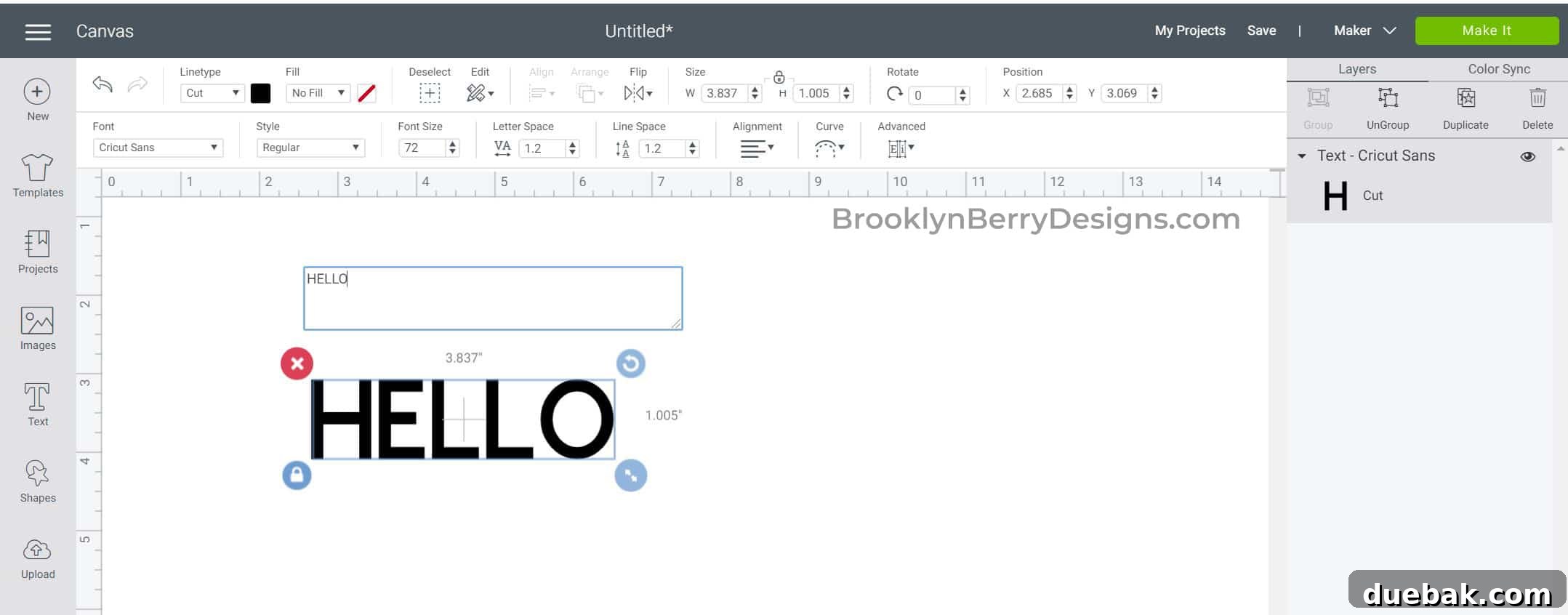
Adding custom text is a fundamental part of many Cricut projects. The “Text” button allows you to insert words, phrases, or full paragraphs onto your Canvas. Once text is added, a dedicated “Text Edit” toolbar appears at the top, providing a wealth of customization options. You can change fonts (choosing from Cricut fonts, system fonts on your computer, or even special Cricut writing fonts), adjust font size, letter spacing (kerning), line spacing, alignment, and even curve your text for unique designs. For deeper insights into optimizing your font choices, be sure to check out our guide on the Best Cricut Design Fonts.
Shapes
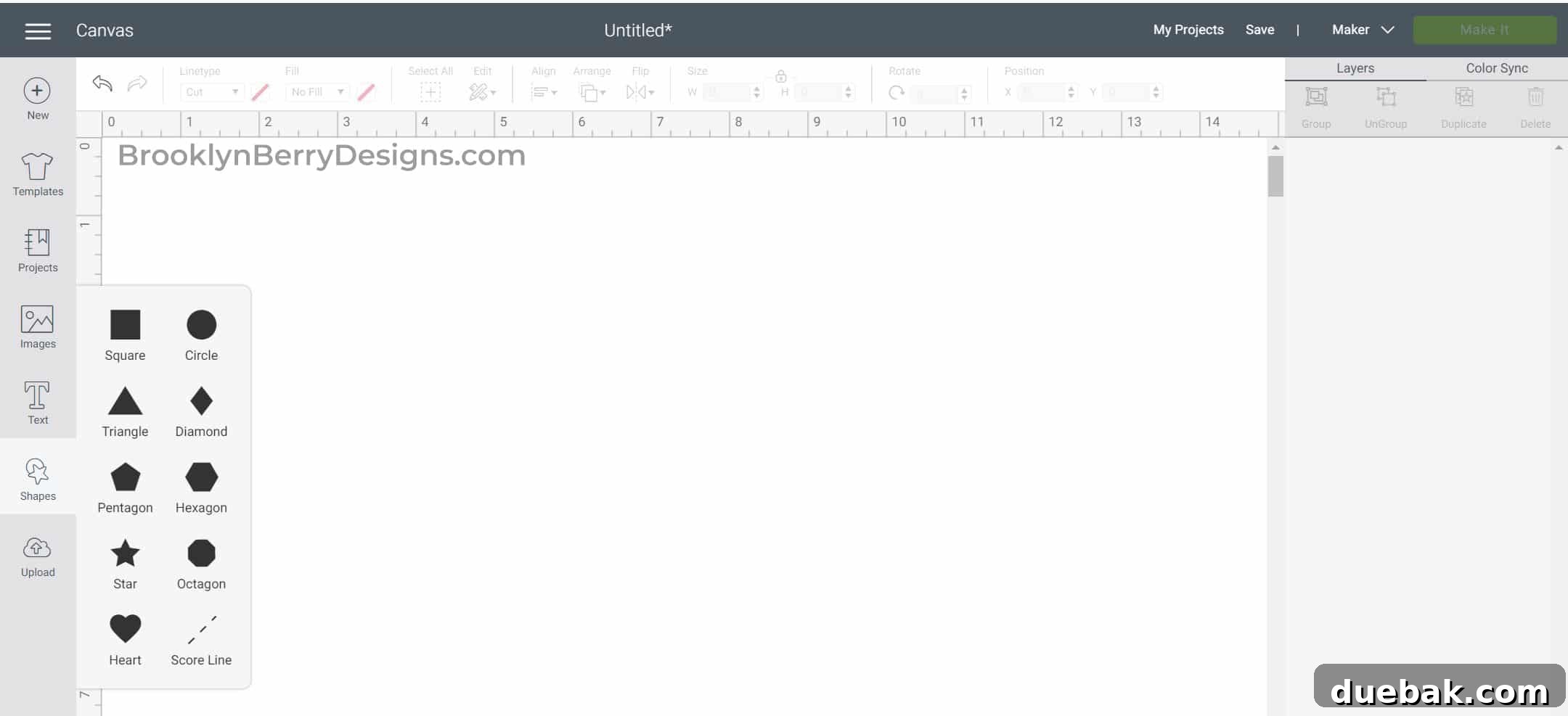
The “Shapes” tool is surprisingly powerful and forms the building blocks of countless designs. It allows you to quickly add basic geometric shapes such as circles, squares, triangles, stars, and lines to your Canvas. While seemingly simple, these shapes are incredibly versatile. They can be used as standalone design elements, backgrounds, frames, or, when combined with other tools (like Slice, Weld, or Attach), can be transformed into complex custom designs. Mastering basic shapes is a cornerstone of advanced design in Cricut Design Space, and we’ll delve into more intricate uses in future tutorials.
Upload
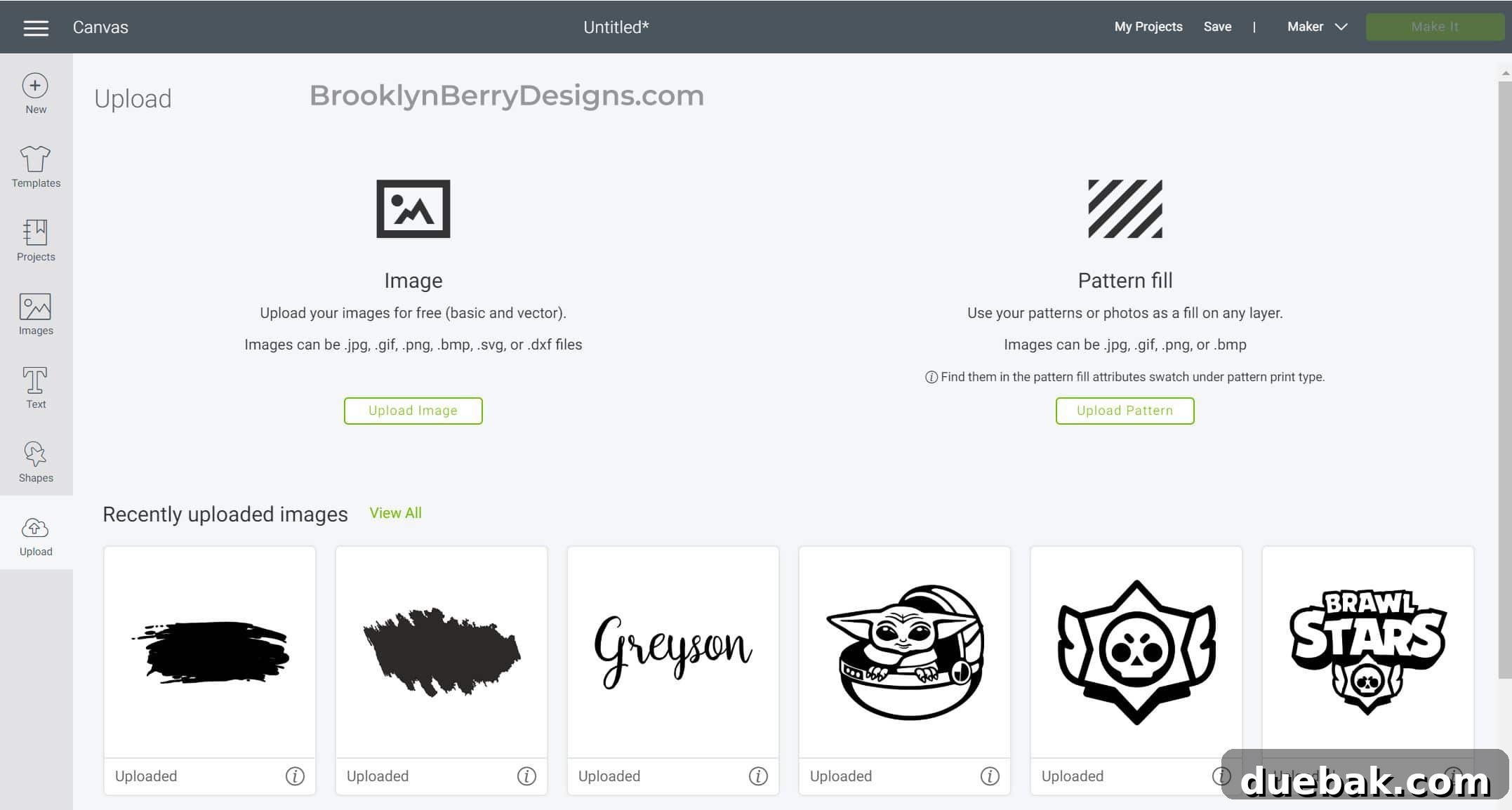
One of the most exciting features of Cricut Design Space is the ability to personalize your projects using your own images. The “Upload” button empowers you to bring your custom designs, logos, or downloaded graphics into the software. Design Space supports a variety of file formats, including .jpg, .gif, .png, .bmp (ideal for Print Then Cut projects), and .svg or .dxf (perfect for intricate layered cuts). This feature is essential for crafters who want to use unique artwork or who design outside of Design Space using programs like Adobe Illustrator or Inkscape. For step-by-step instructions on how to leverage this powerful tool, explore our detailed tutorials on how to upload your own image and specifically how to upload an SVG file.
3. The Layers Panel: Organizing Your Masterpiece
Located on the right side of the Canvas, the Layers Panel is perhaps one of the most crucial tools for any Cricut crafter. It provides a hierarchical view of every single element in your design, treating each component as its own editable layer. Understanding and utilizing the Layers Panel is fundamental to creating complex, multi-layered projects and ensuring your machine cuts exactly as intended.
Each layer represents an individual piece of your design. The color you assign to each layer is incredibly important because Design Space automatically groups all layers of the same color onto the same cutting mat during the “Make It” process. For instance, if you have multiple design elements that are all teal, they will be cut from the same piece of material on a single mat. This grouping streamlines the cutting process and helps you manage your materials efficiently. Within the Layers Panel, you can individually select, hide, delete, or rearrange elements. You can also adjust their line type, defining whether the Cricut machine will cut, draw, score, engrave, deboss, or apply foil to that specific layer.
For example, imagine you’re designing a greeting card that involves a cut-out shape and a score line for folding. To ensure these elements are perfectly aligned and processed together, you would place the card base, the score line, and the cut-out shape on the same layer, then use the “Attach” feature (found at the bottom of the Layers Panel) to permanently link them. This ensures that the score line is applied to the card in the correct position relative to the cut, rather than being placed randomly on a separate mat.
Other powerful tools accessible from the bottom of the Layers Panel include:
- Group/Ungroup: Organizes multiple layers together for easier movement and resizing without affecting their individual properties.
- Duplicate: Creates an exact copy of a selected layer or group.
- Delete: Removes selected layers from your canvas.
- Slice: Cuts one shape out of another, creating new shapes from the overlapping areas.
- Weld: Permanently merges overlapping shapes or text into a single, continuous shape, eliminating overlapping cut lines.
- Attach/Detach: Keeps layers together on the cutting mat in their relative positions. Crucial for aligning cuts, scores, and draws.
- Flatten: Converts multiple layers into a single, printable image layer for Print Then Cut projects.
- Contour: Hides or shows specific cut lines within a single layer, allowing for detailed customization of complex images.
These advanced tools, while initially seeming complex, are what truly unlock the full potential of Cricut Design Space, allowing you to create intricate and professional-looking designs. Take your time to experiment with each one!
Your Creative Journey Begins!
Congratulations! You’ve just taken a significant step in understanding the core functionalities of Cricut Design Space. From navigating the Home Page and its inspiring projects to mastering the fundamental tools within the Canvas, you now have a solid foundation to embark on your crafting adventures. Remember, practice makes perfect, and the best way to learn is by doing. Don’t hesitate to experiment with different features, explore the image library, and try out various projects.
As you grow more comfortable, you’ll find that Design Space offers an incredible depth of creative possibilities. When you’re ready to delve deeper into advanced customization and design techniques, you can explore tutorials on powerful tools like Slice, Weld, Attach, Flatten, and Contour, which will elevate your projects to the next level.
If you found this guide helpful, please consider pinning it to your favorite crafting board for future reference!
Happy Crafting! We can’t wait to see what amazing things you create with your Cricut!