Embarking on the journey of Cricut crafting can be incredibly rewarding, offering endless possibilities for personalization and DIY projects. While many crafters, including myself, start by learning through experimentation and trial and error, sometimes a little expert guidance can unlock a whole new level of skill. I had the unique opportunity to attend the Cricut Maker launch event, where I gleaned invaluable tips and tricks directly from seasoned designers and top crafters. These insights dramatically streamlined my creative process, and I’m thrilled to share some of these fundamental Design Space tutorials with you, starting with one of the most versatile and essential tools: the Slice Tool.
Mastering the Cricut Slice Tool: Your Key to Custom Designs
The Cricut Slice Tool is a powerhouse feature within Design Space, designed to revolutionize how you create custom cut-outs, intricate layers, and personalized elements for your projects. Understanding and utilizing this tool effectively can elevate your crafting from basic to professional, allowing you to achieve complex designs with surprising ease. Imagine the possibilities of turning simple shapes and text into unique, multi-layered masterpieces.
What Exactly Does the Slice Tool Do?
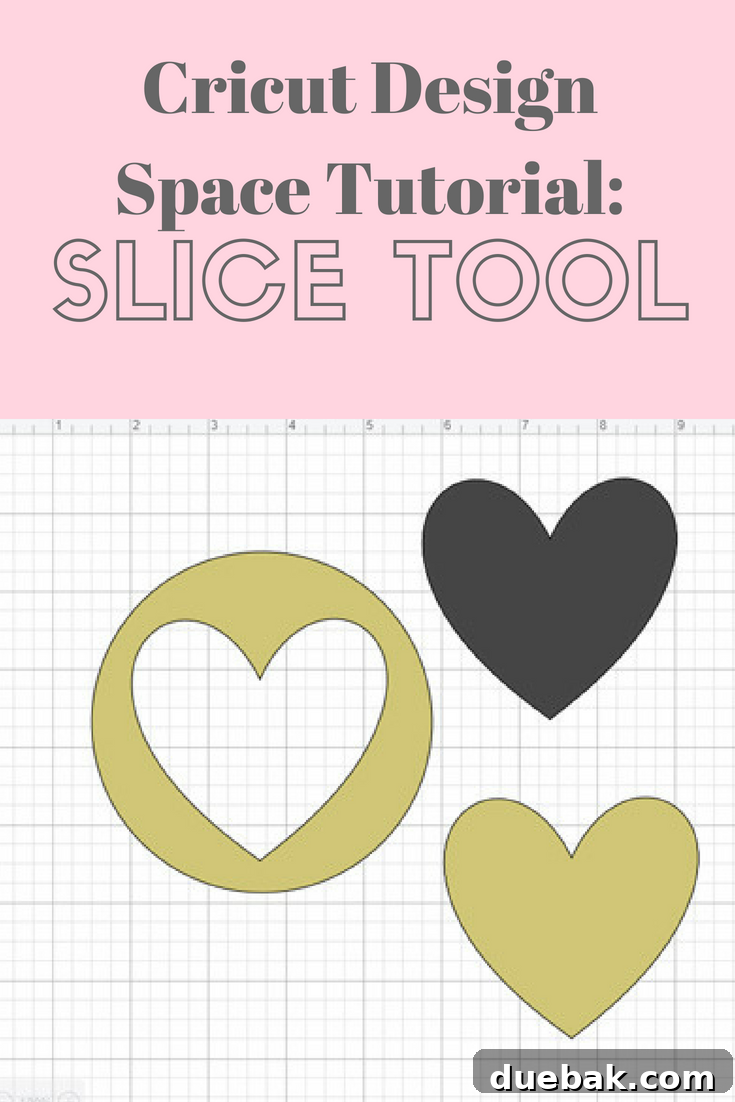
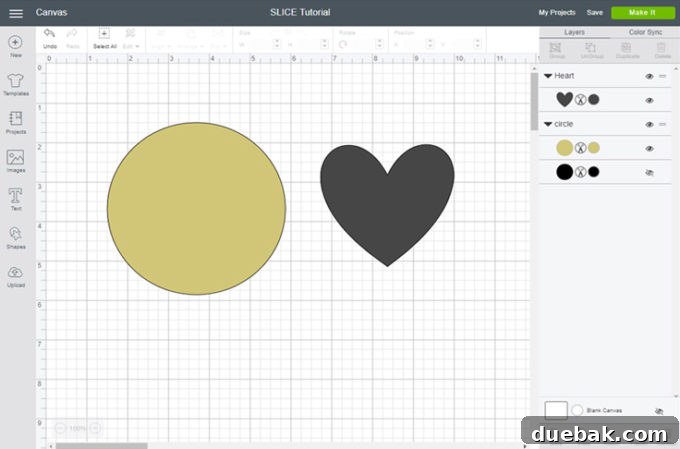
At its core, the Slice Tool allows you to split two overlapping images, shapes, or text into distinct, separate parts. Think of it like a precision cookie cutter for your digital designs. When you use the Slice Tool, it takes the intersection of two selected layers and creates new, individual cut paths. For instance, if you have a large circle and a smaller heart placed over its center, slicing them will result in three distinct pieces:
- The heart shape, cut out entirely.
- The circle, now with a heart-shaped hole precisely cut from its middle.
- The portion of the heart that was outside the circle (if any), which is typically discarded.
This functionality makes the Slice Tool incredibly powerful for subtractive design, where you want to remove a specific portion of one shape from another. It essentially acts as a digital eraser, allowing you to carve out or delete a shape from within a larger object, giving you ultimate control over your design’s intricate details.
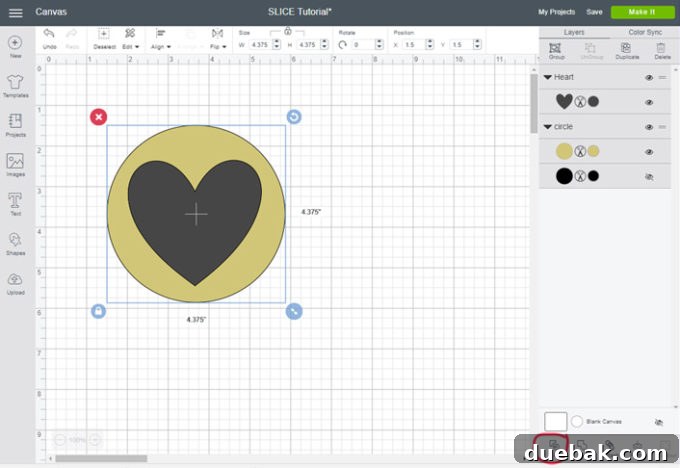
One memorable instance where the Slice Tool proved indispensable was during the creation of my dream catcher t-shirt. I needed to modify the design so that certain feather sections could be cut in a different color. Instead of trying to painstakingly recreate or modify complex feather vectors, I simply used the Slice Tool to precisely “erase” the parts I wanted to separate, allowing me to assign them new colors and cut settings. You can visualize this process by examining the project file in Design Space.
Crucial Tip: The Slice Tool operates exclusively on two selected layers at a time. If you find the Slice button greyed out and unselectable, it’s highly likely you have more or fewer than two layers chosen. Your first troubleshooting step should always be to review your selected layers and, if necessary, ungroup any elements that might be combined.
When to Leverage the Slice Tool for Your Cricut Projects
The versatility of the Slice Tool extends across a wide spectrum of crafting applications. Understanding its primary uses will empower you to tackle more ambitious and personalized projects. Here are some of the most common and effective scenarios for employing the Slice Tool:
1. Creating Custom Cut-Outs and Unique Designs
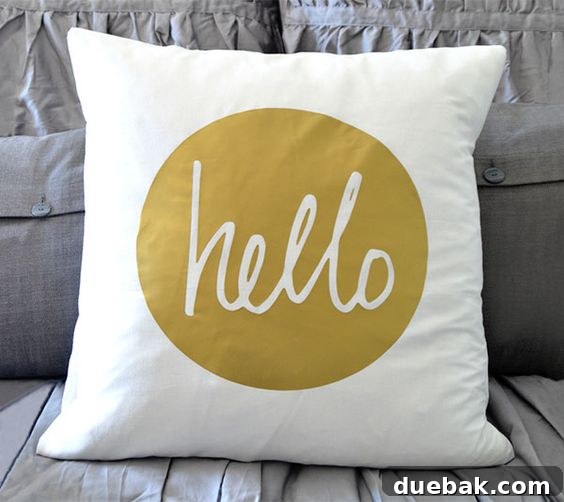
As previously mentioned, the Slice Tool excels at carving out shapes from within other shapes. This is incredibly useful for creating custom windows, holes, or intricate cut-outs that would be difficult or impossible with standard welding or attaching functions. Imagine designing a personalized pillow, like the “Hello Circle” example shown here. With the Slice Tool, you can easily cut out a child’s name, a family surname, or a favorite saying directly from a base shape. Simply start with any foundational shape, overlay your desired text or image, and let the Slice Tool do the work of creating a perfect negative space.
2. Precise “Eraser” for Unwanted Sections
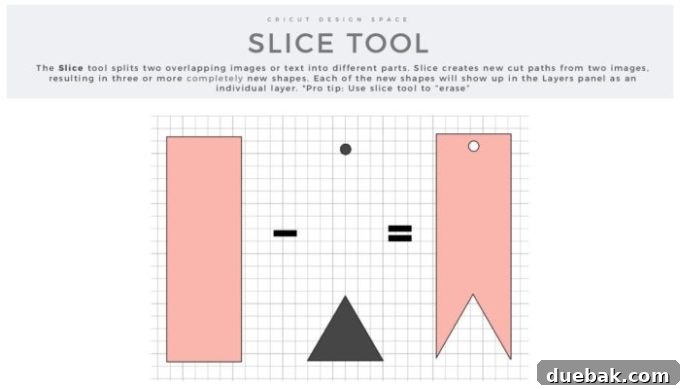
Beyond creating new spaces, the Slice Tool is an excellent method for “erasing” parts of an image or text that you don’t want to include in your final design. This is particularly useful when working with pre-made SVG files or complex images where you only need a specific portion. Instead of trying to contour out intricate details, you can simply overlay a basic shape (like a square or circle) over the unwanted area and slice it away. This method provides clean, sharp edges, making it superior to trying to manually delete segments of a vector.
3. Crafting Unique Layered Designs and Inlays
For projects requiring multiple layers of vinyl, cardstock, or iron-on, the Slice Tool can help create perfectly fitting inlay pieces. If you want to cut a shape out of one layer and then insert a different colored piece perfectly into that void, slicing is your answer. This technique ensures seamless integration and a professional finish, preventing gaps or overlaps that can occur with less precise methods.
4. Designing Stunning Split Monograms
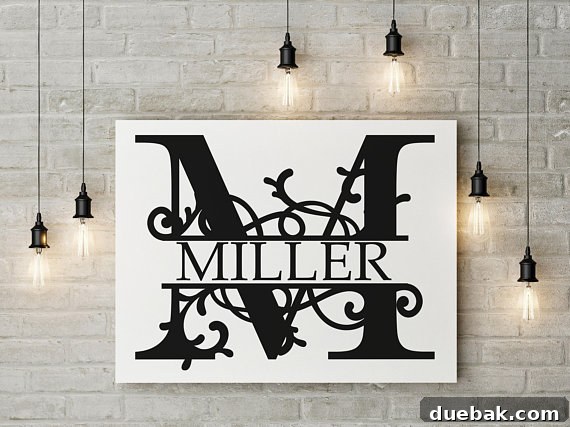
Split monograms are a popular and elegant way to personalize items, featuring a large initial with a blank space in the middle for a name or date. The Slice Tool is instrumental in creating these. You simply take a large letter, overlay two thin rectangles (or a single thicker rectangle, then duplicate and slice), and use the Slice Tool to remove the middle section. Then, you can add your custom text into this newly created space. While many beautiful split monograms are available for purchase on platforms like Etsy, mastering the Slice Tool allows you to design your own unique versions, tailored precisely to your preferences.
5. Advanced Text Manipulation and Stencil Creation
Beyond simple cut-outs, the Slice Tool enables advanced text effects, such as cutting intricate patterns or shapes directly from text. It’s also vital for stencil creation, where you need to ensure that the inner parts of letters (like the center of an ‘O’ or ‘A’) remain connected to the main stencil body. By strategically slicing and welding, you can achieve “bridge” pieces that keep your stencil design intact.
A Step-by-Step Guide to Using the Slice Tool
Let’s walk through the fundamental steps to successfully use the Slice Tool in Cricut Design Space:
- Open Cricut Design Space: Launch the application and start a new project.
- Insert Your Base Layer: Add the shape, image, or text that you want to cut *from*. This will be your foundational layer. Adjust its size and position on the canvas.
- Insert Your Cutting Layer: Add the shape, image, or text that you want to *cut out*. This will be your “cookie cutter.”
- Position the Cutting Layer: Place the cutting layer precisely over the base layer where you want the cut to occur. Ensure there’s sufficient overlap.
- Select Both Layers: Click and drag a selection box around both layers, or hold Shift and click on each layer in the Layers panel on the right side of the screen.
- Activate the Slice Tool: With exactly two layers selected, the “Slice” button (located at the bottom right of the Layers panel) will become active. Click it.
- Examine the Results: Design Space will perform the slice operation. You will now see multiple new layers in your Layers panel. Typically, these include:
- The original base shape, now with the cutting shape removed from it.
- The cutting shape itself.
- Any overlapping portions of the cutting shape that extended beyond the base shape.
- Separate and Delete Unwanted Layers: Drag the newly created layers apart on the canvas. You can now delete any pieces you don’t need, leaving you with your desired custom cut-out or modified shape.
Advanced Tips & Troubleshooting for the Slice Tool
While the Slice Tool is straightforward, a few common scenarios and advanced techniques can further enhance your crafting:
The Two-Layer Rule: Understanding Why it’s Critical
As highlighted in our helpful hint, the Slice Tool absolutely requires only two layers to be selected. This is the most common reason why crafters find the tool greyed out. If you have a group of layers or more than two individual elements, the Slice Tool cannot perform its function. The solution is usually simple: either ungroup your elements or hide/delete any extra layers until only the two intended layers remain.
Working with Complex Designs
For intricate designs with many layers, you’ll need to approach slicing systematically. Instead of trying to slice everything at once, break your design down into two-layer pairs and slice them individually. You might need to duplicate original shapes if you want to perform multiple slices using the same “cookie cutter” shape on different parts of a design.
Combining Slice with Other Design Space Tools
The Slice Tool becomes even more powerful when combined with other Design Space functions:
- Weld: Use Weld to combine multiple shapes into a single, cohesive layer before slicing if you want to cut one complex shape from another.
- Attach: Attach is excellent for holding multiple cut paths together in their relative positions for cutting, but it doesn’t create new shapes like Slice does.
- Contour: After slicing, you might use Contour to hide specific cut lines within one of the resulting layers, further refining your design without fully deleting parts.
- Group: Grouping layers is useful for moving and resizing them together, but remember to ungroup them if you plan to use the Slice Tool.
Beyond the Basics: Unlocking Advanced Creativity
Once you’ve mastered the fundamentals of the Slice Tool, you’ll be well-equipped to explore more advanced techniques, such as the “Knockout Method.” This popular design technique often relies heavily on the Slice Tool to create stylish text effects where one design element appears “knocked out” from another. I’ll be sharing a dedicated tutorial on the Knockout Method soon, but for now, focus on practicing and experimenting with the basic Slice functions.
The Cricut Slice Tool is more than just a function; it’s a gateway to unparalleled customization and precision in your crafting. It empowers you to transform simple ideas into intricate, personalized projects that truly stand out. So, dive into Design Space, experiment with different shapes and texts, and watch as the Slice Tool unlocks a new realm of creative possibilities for your Cricut endeavors.
Explore More Cricut Tips and Tutorials:
Essential Cricut Hacks and Smart Shortcuts
Your Comprehensive Cricut Explore Guide – All FAQs Answered
Discover All Our Inspiring Cricut Projects
Pin this guide for future reference: