Unlock Your Creativity: Discover the Best Cricut Access Fonts for Flawless Projects!
Are you spending endless hours sifting through countless font options in Cricut Design Space, only to feel overwhelmed and unsure which ones will truly make your projects shine? You’re not alone! The vast selection of fonts within Cricut Design Space, while a testament to its versatility, can often be the most frustrating part of the design process. With hundreds of choices sorted alphabetically and no built-in way to mark your favorites, finding that perfect font for your latest DIY creation can feel like searching for a needle in a haystack.
Imagine effortlessly selecting a beautiful, ready-to-cut font that perfectly complements your vision, saving you precious design time and boosting your creative confidence. That’s exactly why I’ve meticulously curated this comprehensive collection of my absolute favorite Cricut Access fonts – those go-to options that consistently deliver stunning results for a wide range of projects. Whether you’re a seasoned Cricut crafter or just starting your journey, this guide is designed to streamline your design process and elevate your handmade creations.
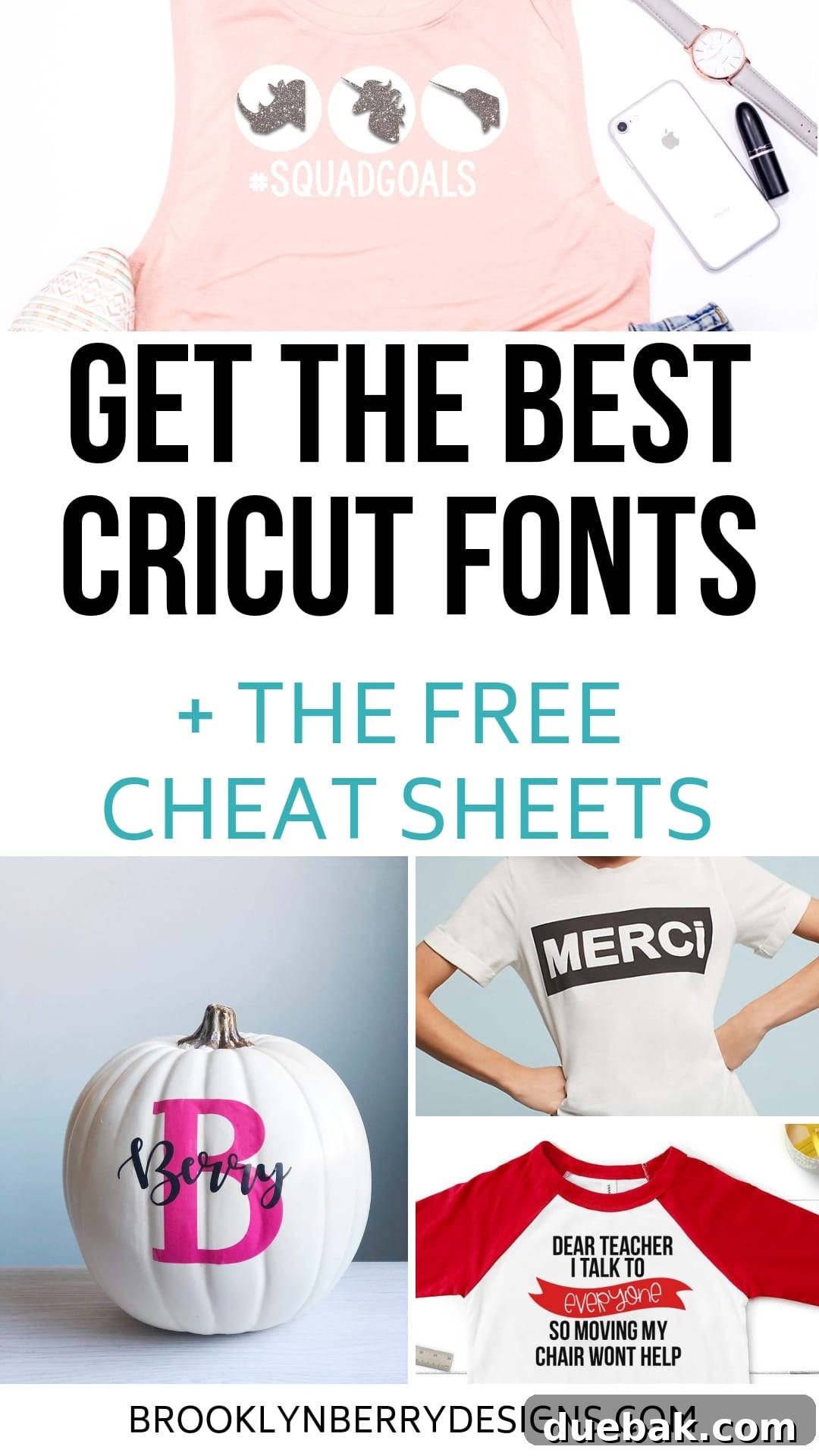
To make your crafting life even easier, I encourage you to screenshot the included font cheat sheets for quick reference, or better yet, download the free printable versions to keep right by your cutting machine. Say goodbye to endless scrolling and hello to efficient, beautiful design!
I’ve invested significant time into exploring the extensive library of fonts available with a Cricut Access plan, identifying the ones that are not only aesthetically pleasing but also perform exceptionally well when cut, drawn, or foiled by your Cricut machine. This guide focuses primarily on fonts included with Cricut Access, providing you with a reliable list of options you can use today without additional purchases.
Cricut Fonts – Your Essential Guide to Design Space Typography
Understanding the ins and outs of fonts in Cricut Design Space is fundamental to creating professional-looking projects. From choosing the right style to mastering intricate cutting techniques, the font you select plays a pivotal role in the final outcome of your crafts.
What Exactly Are Cricut Fonts?
Cricut fonts are a specialized collection of typefaces integrated directly into the Cricut Design Space software. These fonts are specifically optimized for use with Cricut cutting machines, ensuring that your text designs translate smoothly from screen to material. Unlike generic fonts, Cricut fonts are often designed with cutting paths in mind, minimizing common issues like jagged edges, intricate details that tear, or letters that are too thin to weed effectively.
While Cricut Design Space does offer a handful of free fonts that anyone can utilize, the true power and versatility come with a Cricut Access subscription. This premium membership unlocks an expansive library of hundreds, if not thousands, of additional fonts, images, and projects. Having Cricut Access significantly broadens your creative horizons, providing a wealth of options to perfectly match any crafting endeavor you envision.
Can I Use My Own Fonts with My Cricut Machine? Absolutely!
Yes, you absolutely can! Cricut Design Space is remarkably flexible, allowing you to integrate any font that is installed on your computer or device. These are often referred to as “system fonts.” When you’re browsing fonts in Design Space, you’ll notice a filter option that lets you switch between “Cricut fonts” and “System fonts,” making it easy to locate your personal collection.
The beauty of this feature is that any font you’ve downloaded from external sources – whether free font sites or premium marketplaces – and installed on your operating system will automatically appear within Cricut Design Space. There’s no separate installation process required within the Cricut software itself.
However, a crucial point to remember pertains to multi-device usage. If you begin a design on your desktop computer, for example, and then later wish to open and cut that same project from your mobile phone or tablet, the custom font you used will need to be installed on both devices. Without the font installed on the second device, Design Space will prompt you with a missing font error and often substitute it with a generic alternative, potentially altering your design’s aesthetic. If you’ve purchased fonts from reputable sites like Creative Market or Creative Fabrica (two excellent sources for high-quality typefaces), always keep track of your font files or be prepared to re-download and install them on each device you intend to use for designing.
For crafters who frequently switch between devices or share projects, here’s an invaluable time-saving hack: Once your text design is finalized and perfectly spaced, select the text and use the “Weld” tool. Welding combines overlapping shapes (or letters in this case) into a single, cohesive layer. When you weld your letters, Design Space converts the text into a shape, effectively “baking” the font into your design file. This means that when you open the welded file on a different device, the font information is no longer needed because the text is now a static image, ensuring your design appears exactly as you intended, regardless of whether the font is installed on the second device.
Mastering Font Selection: Tips for Choosing the Perfect Cricut Font
Selecting the ideal font for your Cricut project goes beyond mere aesthetics; it’s about functionality, readability, and ensuring a smooth cutting process. A poorly chosen font can lead to frustrating weeding, torn materials, and a less-than-professional finish. Here are some essential tips to guide your font selection:
Prioritize Smooth Edges and Clear Shapes
When scrutinizing a font, zoom in on the letters within Design Space. Avoid fonts with overly rough, distressed, or intricate edges, especially for smaller designs or delicate materials. While these might look stylish on screen, they can be incredibly challenging for your Cricut blade to cut cleanly. The result is often jagged cuts, frayed edges, or even torn vinyl during weeding. Opt for fonts with smooth, well-defined contours for the best cutting results.
Embrace Boldness for Easier Weeding
For most cutting projects, particularly those involving vinyl, iron-on, or cardstock, bold fonts are your best friend. Thicker, bolder letterforms not only stand out more prominently but are also significantly easier to weed (remove excess material) after cutting. Thin, wispy fonts, while elegant, are notorious for tearing during the weeding process, leading to wasted material and frustration. If you fall in love with a thinner font, consider adding an offset to make it thicker and more robust for cutting.
Consider Material and Project Scale
The type of material you’re cutting and the overall scale of your project should heavily influence your font choice. For example, a delicate script font might work beautifully for a large sign cut from cardstock but would be nearly impossible to weed if cut small from adhesive vinyl. Conversely, a chunky block font might be perfect for a t-shirt design but could look clunky on a small greeting card. Always consider the interplay between font thickness, material properties, and the final size of your cut design.
Readability is King
Above all, your text needs to be readable. Some highly decorative fonts, while visually appealing, can sacrifice legibility, especially when cut or scaled down. Test your chosen font with the actual text you plan to use in Design Space, and consider how it will look to your audience. Ensure there’s enough distinction between letters and that the overall word shape is easily recognizable.
Mastering Script & Cursive Fonts: The Best Cricut Access Options
Script and cursive fonts bring an unparalleled elegance and personal touch to any crafting project, mimicking beautiful handwriting without the need for perfect penmanship. However, working with these fonts in Cricut Design Space requires a bit more attention to detail, specifically regarding letter spacing and welding, to achieve that seamless, connected look. My biggest pet peeve when observing others’ script font projects is seeing individual letters spaced out, losing the fluidity that makes cursive so charming.
Understanding and Adjusting Letter Spacing (Kerning) in Script Fonts
Kerning refers to the adjustment of space between individual characters to improve legibility and create a visually pleasing result. For script fonts, proper kerning means ensuring that letters flow into one another naturally, just as they would in handwritten cursive. When you type a word using a script font in Cricut Design Space, the letters will often appear individually spaced, rather than connected.
To achieve the authentic connected look for your script fonts, you’ll need to manually adjust the letter spacing. Here’s how:
- Ungroup the Word: Select your typed text box and click the “Ungroup” icon (usually found in the top toolbar or layers panel). This action separates the entire word into individual letters, making each character independently movable.
- Drag Letters Closer: Carefully drag each letter closer to the next, ensuring they slightly touch or overlap where they would naturally connect. Take your time to get the spacing just right, paying attention to the unique curves and swashes of your chosen font.
- Weld the Letters: Once you’re satisfied with the spacing and all letters are touching or overlapping, select all the individual letters that form your word. Then, click the “Weld” tool (located in the bottom right of the layers panel). Welding is crucial because it merges all selected overlapping shapes into a single, unified layer. If you skip this step, your Cricut machine will cut each overlapping letter individually, resulting in a series of disjointed cuts instead of one cohesive word. You absolutely don’t want to make this mistake, as I have learned from experience!
Important Update (July 1, 2021): Cricut Design Space introduced a game-changing update for font enthusiasts! The software now includes an automatic kerning tool for many fonts. If you’re browsing the font list and not immediately seeing some of the names mentioned here, check the “Kerned Fonts” checkbox filter. By unchecking this box, you’ll reveal all fonts, including older ones that don’t have automatic kerning enabled, allowing you to find the full range of options listed below. When a font is “kerned optimized,” the letters should appear correctly spaced and connected as soon as you type them, significantly reducing your manual adjustment time! However, even with auto-kerning, remember that you still need to “Weld” the letters if you want them to cut as a single, connected piece.
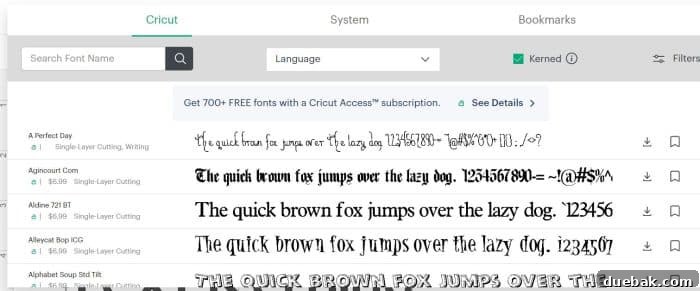
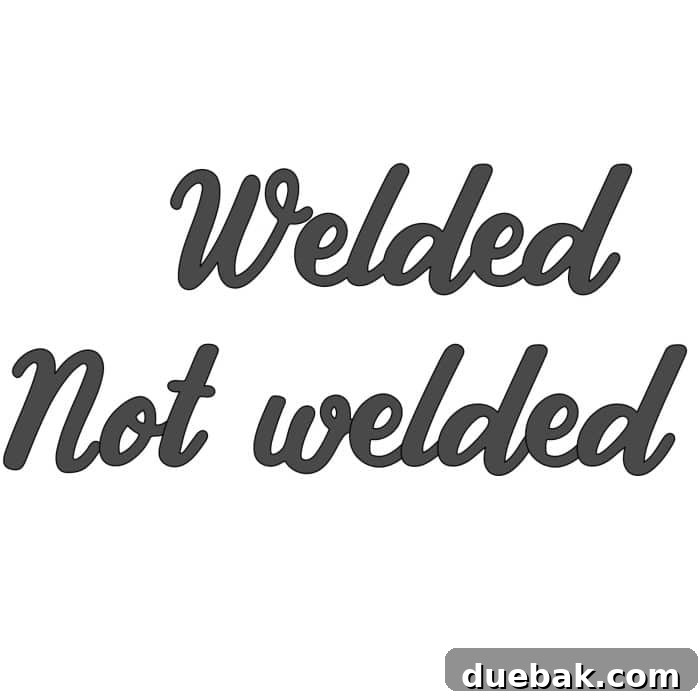
The distinction between welded and unwelded text is critical for professional-looking cuts. Let’s visualize the difference:
Here is what the text looks like welded vs. not welded:
Here is a close-up view:
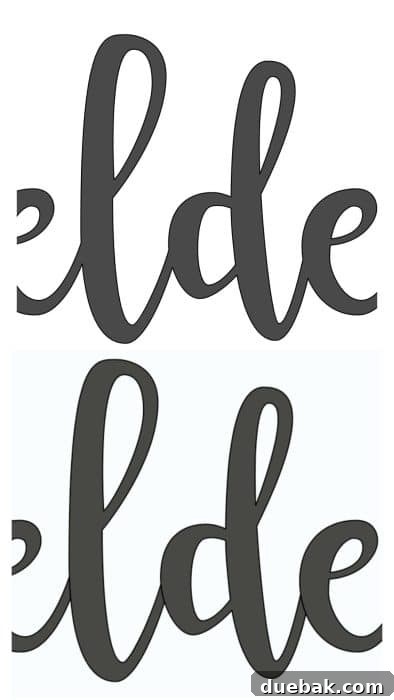
As you can clearly see, if you’re cutting these letters from vinyl, paper, or any other material and desire a single, fluid, connected word, then welding your letters is an absolute must. It ensures a clean, continuous cut without any unwanted overlaps or breaks.
My Top Picks for Popular Cricut Access Script Fonts:
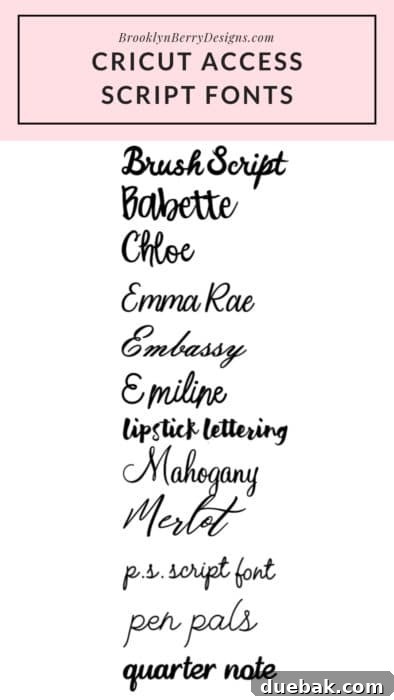
Ready to add a touch of elegance to your projects? Here are some of my favorite and most frequently used script fonts available through Cricut Access:
- Brush Script: A classic, versatile choice with a hand-painted feel.
- Babette: Elegant and refined, perfect for invitations and sophisticated designs.
- Chloe: A charming, flowing script that adds a delicate touch.
- Emma Rae: Playful yet graceful, ideal for personalized gifts.
- Embassy: A more formal, traditional script for classic appeal.
- Emiline: Modern and airy, offering a light, contemporary look.
- Lipstick lettering: Fun and stylish, great for bold statements.
- Mahogany: Rich and distinctive, with a slightly vintage vibe.
- Merlot: Smooth and sophisticated, excellent for upscale projects.
- P.S. Script Font: A sweet and personal touch, like a handwritten note.
- Pen Pals: Friendly and approachable, evoking a casual handwritten feel.
- Quarter note: Unique and artistic, with a distinctive flair.
Print Fonts: Understanding Serif and Sans-Serif Styles for Cricut
Beyond the flowing beauty of script fonts, print letters offer clarity, structure, and versatility for a myriad of Cricut projects. These are non-script typefaces, characterized by their individually spaced characters, much like standard typed or hand-printed letters. Within the realm of print fonts, there are two primary categories you’ll encounter: Serif and Sans-Serif fonts.
Serif Fonts: The Classic Choice
To over-simplify, serif fonts are distinguished by small decorative strokes or “feet” – called serifs – extending from the ends of their letterforms. Think of the classic elegance of Times New Roman or the sturdy appeal of Rockwell. These serifs add a traditional, authoritative, and often more formal aesthetic. They are excellent for projects where you want to convey a sense of heritage, classic design, or a more serious tone. Serif fonts are also often perceived as highly readable in print, making them a good choice for longer blocks of text, though for cutting machines, their delicate serifs need to be managed carefully to ensure clean cuts.
Sans-Serif Fonts: Modern, Clean, and Versatile
“Sans” means “without” in French, so sans-serif fonts are simply fonts without those decorative “feet.” They are characterized by clean, straight lines and a more minimalist design. Popular examples include Arial, Helvetica, or Cricut’s own Din 1451. Sans-serif fonts typically offer a modern, clean, and often more casual or contemporary feel. Their simple design makes them incredibly versatile and, crucially for Cricut users, generally easier to cut cleanly, especially when scaled down. The absence of intricate serifs means fewer tiny points for the blade to navigate, resulting in smoother cuts and simpler weeding processes.
Key Considerations for Print Fonts with Cricut
- Readability: Both serif and sans-serif fonts offer excellent readability, but sans-serif often performs better at smaller sizes when cut due to its simpler forms.
- Thickness: As with all fonts, consider the thickness. Bold print fonts are generally easier to weed and less prone to tearing.
- Material Compatibility: Simple sans-serif fonts are often the best choice for intricate vinyl decals or delicate paper projects, as they reduce the chances of material tearing.
- Project Theme: Match the font style to your project’s theme. A classic serif might be perfect for a vintage-inspired piece, while a sleek sans-serif would suit a modern minimalist design.
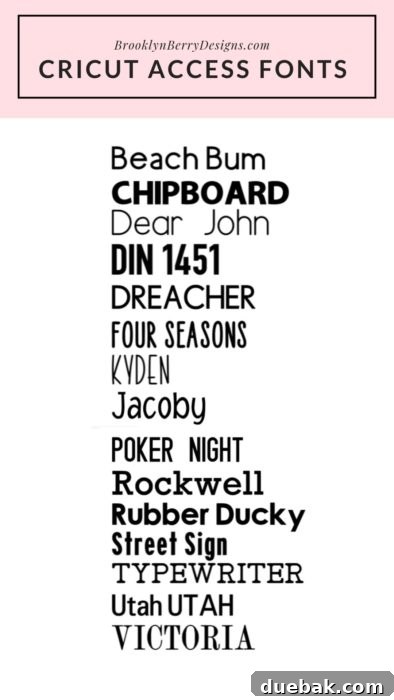
Many print fonts cut exceptionally well on the Cricut Maker and other Cricut machines, thanks to their defined shapes. Here’s a selection of my best Cricut Access print fonts that are reliable for cutting:
My Favorite Cricut Access Print Fonts (Serif and Sans-Serif):
- Beach Bum: A fun, relaxed sans-serif, great for casual designs.
- Chipboard: Offers a sturdy, handcrafted feel, ideal for rustic projects.
- Din 1451: A classic, highly readable sans-serif, excellent for labels and signs.
- Dreacher: Modern and bold, perfect for impactful statements.
- Four Seasons: Versatile and clean, suitable for a range of themes.
- Kyden: A crisp, geometric sans-serif, offering a contemporary edge.
- Jacoby: Distinctive and strong, great for titles and headlines.
- Poker Night: Playful and thematic, adds character to themed projects.
- Rockwell: A robust, classic slab serif, very readable and sturdy.
- Rubber Ducky: Whimsical and cute, perfect for children’s items.
- Street Sign: Clear and authoritative, mimics official signage.
- Type Writer: Evokes a vintage, mechanical feel, great for nostalgic designs.
- Utah: A strong, no-nonsense sans-serif, excellent for bold text.
- Victoria: Elegant and clean, a lovely all-around print font.
Unlock Your Cricut’s Writing Potential: Discover the Best Writing Fonts
Beyond cutting, your Cricut machine is an incredible tool for drawing and writing, opening up a world of possibilities for personalized cards, intricate invitations, custom labels, and more. This is where Cricut’s “Writing Fonts” come into play, specifically designed to be used with the pen tools to achieve a beautiful, handwritten look.
These fun and functional fonts are not only excellent for addressing envelopes with a Cricut pen, but they also shine when utilized with specialized tools like the engraving tool (perfect for projects on your Cricut Maker) or the foil transfer tool to add shimmering details. The key distinction lies in how these fonts are structured for the machine’s capabilities.
Why Choose Specific Writing Fonts?
When you select a font in Cricut Design Space, you can filter by “Writing” style. This filter is essential because writing fonts are uniquely designed as single-line paths, meaning the Cricut pen (or engraving/foil tool) will draw a single, continuous stroke to form each letter. This results in a crisp, clean, and authentic handwritten appearance.
If you attempt to use a standard cutting font (which is designed for the blade to cut around the perimeter of each letter) with a pen, the result will be a hollow, “bubble” or “balloon” letter outline. While this effect can sometimes be desired for specific styles, it’s generally not what you want when aiming for a natural handwritten look. The pen simply traces the outer edges of the font, leaving the inside empty.
Pro Tip for Laser Cutters: If you’re venturing into engraving or scoring text with a Glowforge or other laser cutter, you’ll also want to seek out thin, single-line fonts. These fonts are optimized for precise, delicate lines, much like Cricut’s writing fonts. Explore my favorite single-line fonts for engraving here.
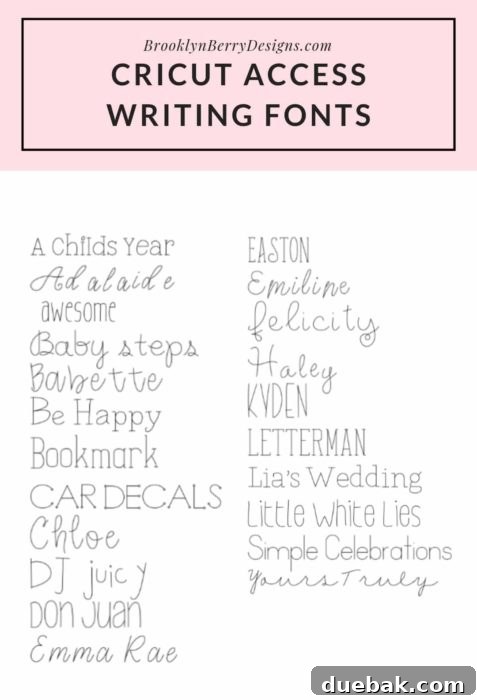
My Favorite Cricut Access Writing Fonts:
Elevate your drawn and engraved projects with these excellent Cricut Access writing fonts:
- A Child’s Year: Sweet and innocent, perfect for baby announcements and kids’ crafts.
- Adalaide: Elegant and refined, adds a touch of sophistication to any project.
- Awesome: Bold and clear, great for making statements.
- Baby Steps: Cute and charming, ideal for personalized baby items.
- Babette: A graceful script that translates beautifully to writing.
- Be Happy: Uplifting and friendly, brings a positive vibe.
- Bookmark: Clean and readable, excellent for labels and organizational tasks.
- Car Decals: Surprisingly versatile for writing, clear and sturdy.
- Chloe: A delicate and pretty script, wonderful for cards.
- DJ Juicy: Fun and playful, adds a lively touch.
- Don Juan: Classic and distinguished, suitable for formal invitations.
- Emma Rae: A delightful script that looks genuinely handwritten.
- Easton: Modern and clean, very legible for various uses.
- Emiline: Light and airy, creates an elegant written feel.
- Felicity: Expressive and stylish, perfect for heartfelt messages.
- Haley: Simple and sweet, a versatile everyday writing font.
- Kyden: A clean, contemporary writing font that’s easy to read.
- Letterman: Bold and clear, reminiscent of varsity lettering.
- Lia’s Wedding: Romantic and formal, exquisite for wedding stationery.
- Little White Lies: Whimsical and enchanting, adds a magical touch.
- Simple Celebrations: Straightforward and festive, great for party decor.
- Yours Truly: A classic, personal script, perfect for greetings.
Stay Current: Cricut Design Space Updates & New Font Additions (October 2022)
Cricut is constantly evolving, and Design Space frequently receives updates that introduce new features, improvements, and, excitingly, new fonts! Keeping an eye on these updates can unlock fresh creative avenues for your projects. For instance, the October 2022 update brought a delightful collection of holiday-themed fonts, perfect for adding festive cheer to your seasonal crafts.
To discover these new additions and more, simply navigate to your Canvas in Design Space, add a text box, and then select the “Cricut Fonts” filter. For the October 2022 holiday fonts specifically, you can search for “BFC” to quickly pull up this charming collection and others that have been added.
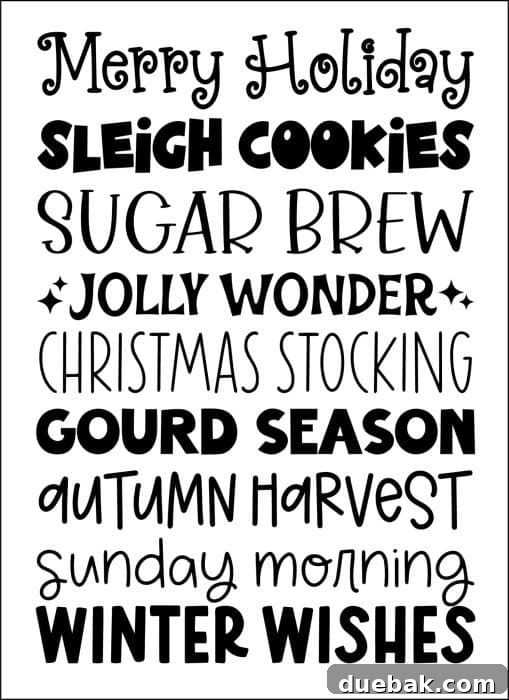
Quick Tip for Jolly Wonder: To add those charming stars often seen with the Jolly Wonder font, simply use the ‘<‘ (less than) and ‘>’ (greater than) keys! This neat trick is perfect for infusing a little extra sparkle and spice into your holiday-themed Cricut projects, making them truly stand out.
Further Your Cricut Journey: Essential Tutorials & Project Inspiration
Ready to dive deeper into the world of Cricut crafting? Explore these helpful tutorials and discover exciting project ideas that will inspire your next creation:
Valuable Cricut Tutorials to Enhance Your Skills:
- Cricut Hacks – Essential Tricks and Tips You Need to Know
- Cricut Explore Guide – Answers to All Your Frequently Asked Questions
- How To Upload An SVG to Cricut Design Space for Custom Designs
- Can I Put Iron-On Vinyl On That? Unraveling Material Compatibility
Inspiring Cricut Project Ideas to Get You Started:
- Craft a Beautiful DIY Leather Journal Cover with Your Cricut
- Create a Fun DIY Car Play Mat Using Your Cricut Maker
- Design a Cozy Camping RV Pillow: Homemade Gift Ideas
Connect with Fellow Crafters!
Are you looking to connect with a vibrant community of like-minded crafters? Join our Facebook group to share your amazing Cricut projects, get inspiration, and make new crafty friends!
Your Ultimate Resource: Download the FREE Cricut Font Cheat Sheet!
To ensure you never waste another moment scrolling for the perfect font, I’ve compiled all my favorite Cricut Access fonts into an incredibly handy, printable cheat sheet. This valuable resource provides a comprehensive overview of the best fonts, categorized for easy reference, allowing you to have a physical copy right at your fingertips whenever inspiration strikes or a project demands a specific style.
This exclusive cheat sheet is designed to be your go-to guide, featuring clear examples of each font discussed in this article, making it simple to compare and select the ideal typeface for your vinyl cuts, card designs, personalized gifts, and more. Say goodbye to guesswork and hello to consistent, professional results!
If you find this guide helpful, please be sure to bookmark this page or pin it to your favorite crafting board on Pinterest so you can easily find it whenever you need a font recommendation. Even better, download the one-page PDF cheat sheet directly to your computer. It’s perfectly formatted for printing, ready to be kept next to your Cricut machine for instant access to a curated selection of top-performing fonts.
This free, indispensable tool is available exclusively for my valued email subscribers. To receive your copy, simply enter your email address in the form below, and I’ll send the download link straight to your inbox! Join our community of savvy crafters and unlock even more tips, tricks, and project ideas.
Instructions for Download: After successfully entering your information into the form, you will promptly receive an email from me containing a secure link to download your free Cricut Font Cheat Sheet. The PDF file should open and download automatically, allowing you to easily view and print it from any device. Get ready to transform your Cricut crafting experience!